Story Boards (NEW!)
Story Boards let you organize Tenovos assets into secure, branded portals that you share with internal teams or external partners. Each board contains one or more story blocks — curated groups of assets drawn from shared collections or saved searches — and can be published with a single click to make it available to the right audience.
Only users with the Story Board Management or Story Board View privilege will see Story Boards in the navigation bar. Contact your system administrator if you do not see it.
- What's new in this redesign
- Key concepts
- Story Boards page overview
- To Create a Story Board
- To Duplicate a Story Board
- To Translate a Story Board
- To Publish or Unpublish a Story Board
- To Share a Story Board
- To Adjust the Banner
- To Reorder Story Board Content
- To Update Story Board Security
- To Delete a Story Board
- Work with story blocks
- Work with story block assets
- Story board security
- Known Limitations
- FAQ
What's new in this redesign
This release refreshes the Story Boards experience. The table below summarizes the main changes from the previous version.
| Area | What changed |
|---|---|
| Asset cards | Asset cards have a refreshed visual design — lighter background, rounded edges, and portrait-oriented thumbnails with more spacing between cards — now aligned with the content gallery cards used elsewhere in Tenovos for a consistent look and feel. |
| Asset badges | Each asset card now show asset badges at the bottom of the thumbnail. Badges are defined per customer and reflect the status attributes configured for your environment. |
| Hover-revealed card actions | Hovering over an asset card reveals a checkbox in the top-left corner and a ⋮ menu button in the top-right corner for quick selection and asset-level actions. |
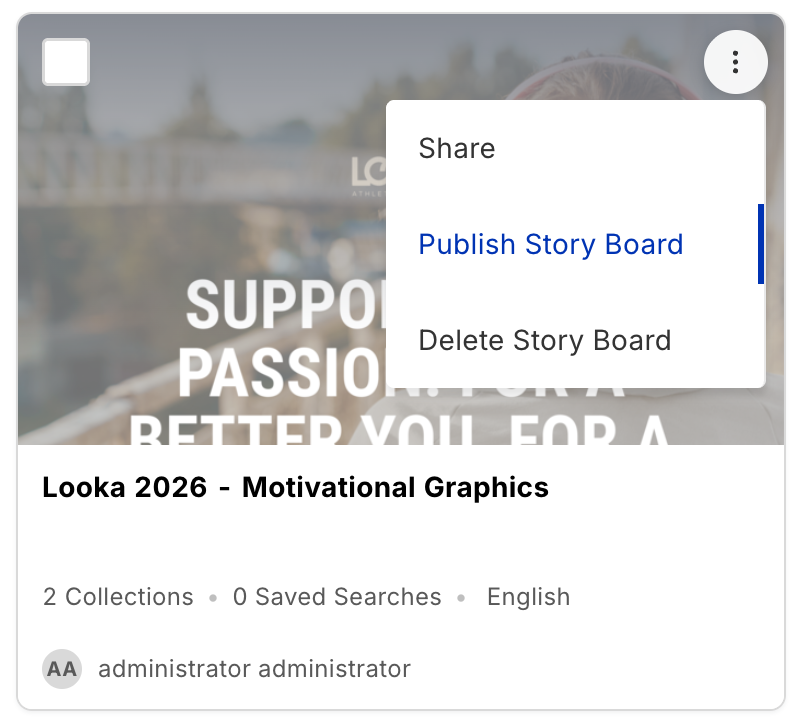
| Story board list ⋮ menu | Story board list cards now have a ⋮ menu in the top-right corner (on hover) with Share, Publish/Unpublish Story Board, and Delete Story Board — no need to open the board first. |
| Banner — drag to reposition | The banner image can be repositioned by clicking and dragging it within the banner frame, instead of always defaulting to a center crop. |
| Add Story Block — single-step panel | The Add Block flow is simplified from a two-step modal to a single Add Content to Story Board panel with Collection and Saved Search tabs, a searchable source table, and a Save button — no intermediate Select a Block Type step. |
| AI Translations | Duplicating a board now offers a Translation toggle in the Duplicate Story Board panel. Select a target language, click ✦ Generate translation, and Tenovos AI automatically translates the board title, description, and all story block titles and descriptions. See To Translate a Story Board. |
Key concepts
| Term | Description |
|---|---|
| Story Board | A secure branded portal containing one or more story blocks of curated assets. |
| Story Block | A group of assets within a story board, sourced from a shared collection or a saved search. |
| Security Template | A predefined access policy applied to a story board or story block to control who can see it. |
| Published | A story board is visible to users with appropriate access only after it is published. |
Story Boards Gallery overview
The Story Boards Gallery displays all available boards as large image cards in a grid. Each card shows the board's banner image, title, description, collection and saved search counts, language, creator, and publish status.
From this page you can:
- Search across all story boards using the full-width Search Story Boards bar at the top of the page
- Filter boards by publish status using the Filter icon — choose All Boards, Published, or Unpublished. (Filtering Story Boards is only available to users with the Story Board Management)
- Sort boards using the Sort icon — sort A → Z, Z → A, or Most Recent (default)
- Click + Create Story Board to create a new board
- Click any card to open that story board
- Hover over a card and click the ⋮ menu in the top-right corner to share, publish/unpublish, or delete that board
To Create a Story Board
- Click Story Boards in the navigation bar.
- Click + Create Story Board in the top right corner.
- Complete the fields in the dialog:
- Security Templates: Select one or more templates. These determine which users can access the board. You must select at least one.
- Title: Enter a name for the story board.
- Click Save. Tenovos creates the board and opens it.
- Click under the board title to add a Description.
- Click Change Banner Image to set a banner image, then click Save.
- Add story blocks using + Add Block at the bottom of the board.
Security templates determine which user groups can see the board. Only users in the assigned groups will see it after it is published.
To Duplicate a Story Board
- Click Story Boards in the navigation bar, then click a board to open it.
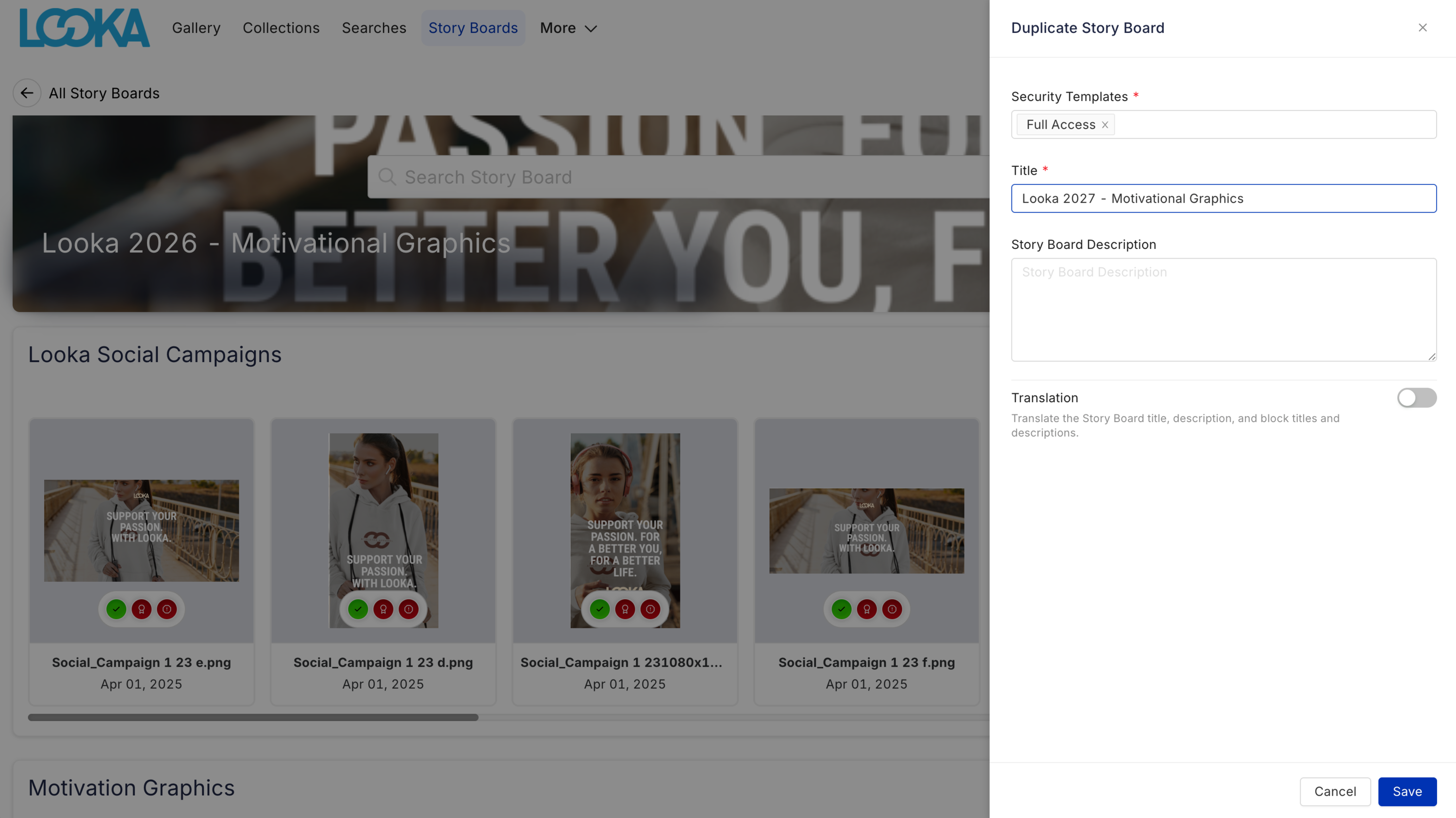
- Click the Settings (gear) icon in the top right and select Duplicate Story Board. The Duplicate Story Board panel opens.
- Adjust the Security Templates, Title, and Story Board Description for the new board as needed.
- Click Save. Tenovos creates a copy of the board including all its story blocks.
To also translate the duplicate into another language, see To Translate a Story Board.
To Translate a Story Board
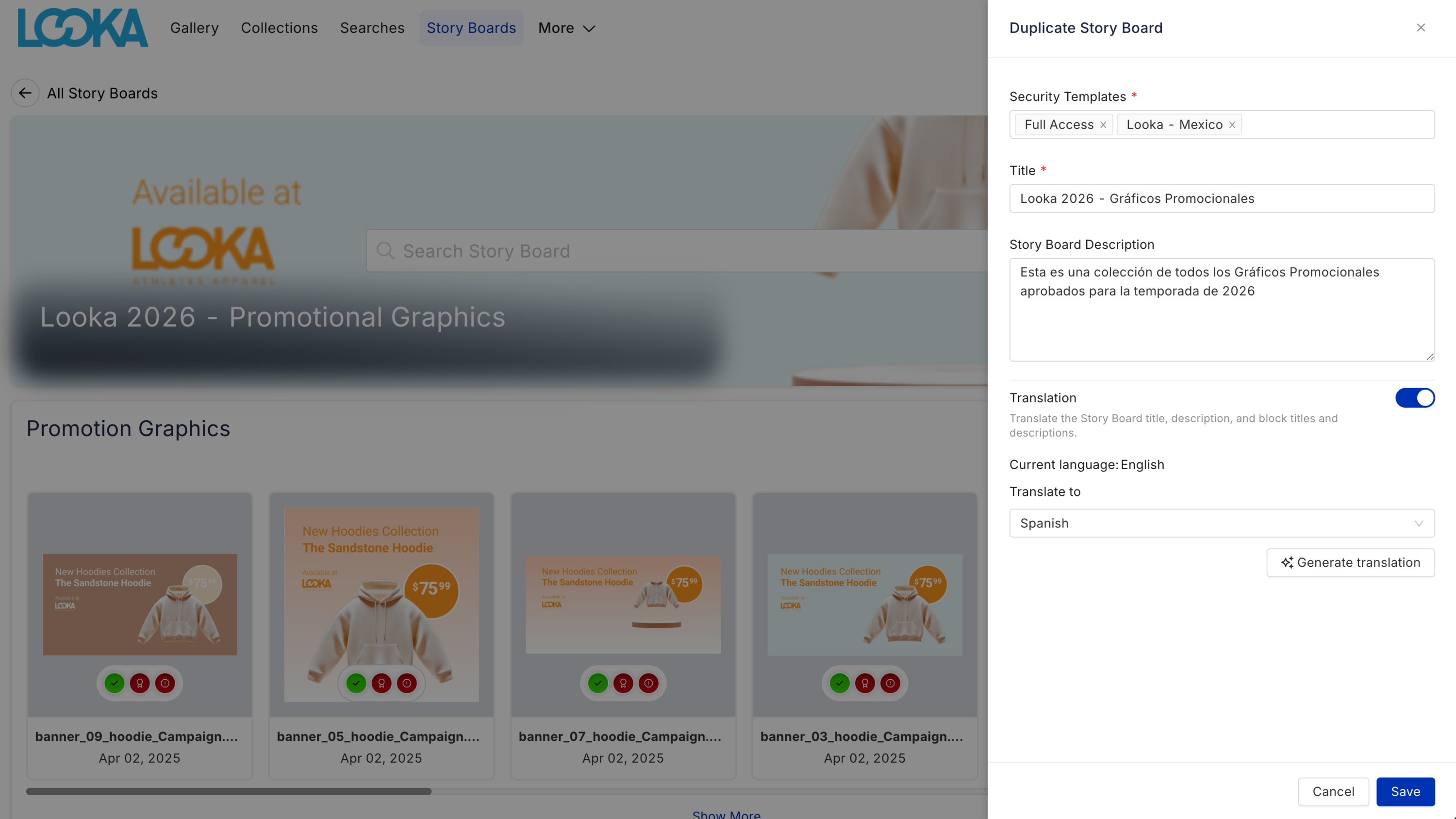
Translation creates a duplicate of a board with the title, description, and all story block titles and descriptions automatically translated into the language you choose. The translated fields are editable before you save.
- Click Story Boards in the navigation bar, then click a board to open it.
- Click the Settings (gear) icon in the top right and select Duplicate Story Board.
- Adjust the Security Templates, Title, and Story Board Description if needed.
- Toggle Translation on.
- In the Translate to dropdown, select a target language. The Current language field shows the source language of the board.
- Click ✦ Generate translation. Tenovos translates the board title, description, and all story block titles and descriptions and populates the fields with the results.
- Review and edit the translated fields if needed.
- Click Save. Tenovos creates the translated duplicate.
Supported languages: Arabic, Bengali, Chinese (Simplified), Chinese (Traditional), English, Filipino/Tagalog, French, French (Canada), Hausa, Hindi, Indonesian, Japanese, Korean, Marathi, Portuguese (Brazil), Russian, Spanish, Swahili, Tamil, Turkish, Urdu, and Vietnamese.
To Publish or Unpublish a Story Board
Publishing makes a board visible to users with appropriate access. Only users with the Story Board Management privilege can publish or unpublish a board.
- Click Story Boards in the navigation bar.
- Find the board's card. The Published badge indicates the current status.
- Hover over the card and click the ⋮ menu, then select Publish Story Board or Unpublish Story Board.
Unpublished boards are only visible to users with the Story Board Management privilege.
To Share a Story Board
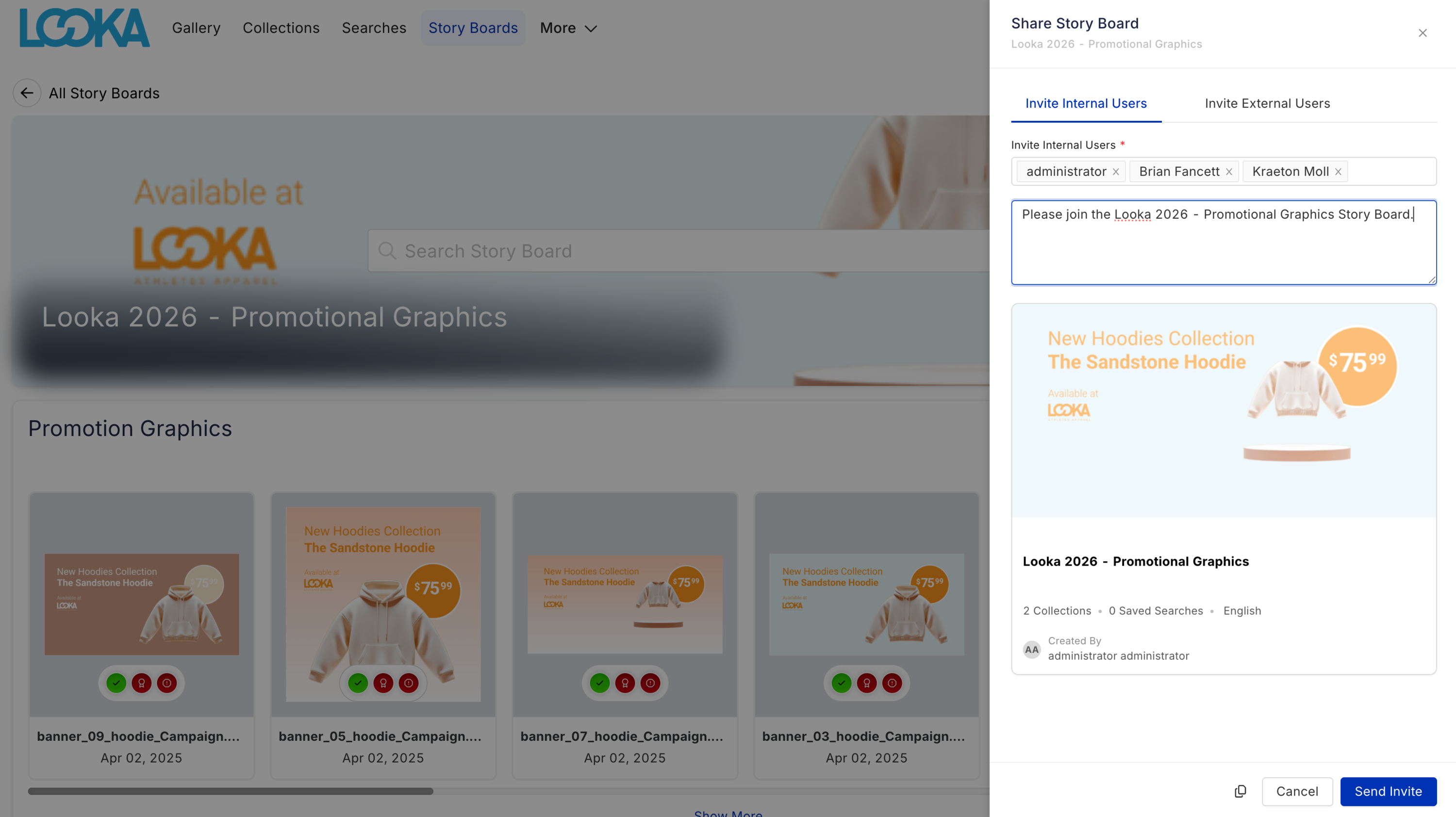
The Share icon opens a panel where you can invite users to access the board or copy a direct link. The panel displays a preview card showing the board's banner, title, stats, creator, and publish status.
You can open the Share panel from two places: hover over a board card on the Story Boards list and click ⋮ > Share, or open a board and click the Share icon in the top right.
To Share with Internal Users
- Open the Share panel — open the board and click the Share icon in the top right, or hover over the board card on the list and click ⋮ > Share.
- On the Invite Internal Users tab, search for users by name in the Invite Internal Users field.
- Optionally edit the pre-filled invitation message.
- Click Send Invite. Users receive an email with a link to the board.
To Share with External Users
- Open the Share panel — open the board and click the Share icon in the top right, or hover over the board card on the list and click ⋮ > Share.
- Click the Invite External Users tab and enter one or more email addresses. Press Enter after each address.
- Optionally edit the pre-filled invitation message.
- Click Send Invite. Recipients receive an email with a link to create an account and access the board.
To Copy the Board Link
- Open the Share panel — open the board and click the Share icon in the top right, or hover over the board card on the list and click ⋮ > Share.
- Click the Copy link icon at the bottom of the panel. The link is copied to your clipboard.
To Adjust the Banner
To Change the Banner Image
- Open the story board.
- Click the Set Banner Image button (the blue circular image icon in the top-right corner of the banner). The Set Banner Image panel opens showing available assets.
- Search for or scroll to the image you want, select it, and click Save.
File Types allowed to be set as the Story Board banner are: PNG, JPG, TIF, GIF, WEBP, PSD and EPS.
To Reposition the Banner Image
- Open the story board.
- Click the Settings (gear) icon in the top right and select Adjust Banner.
- Click and drag the banner image left, right, up, or down to adjust which part of the image is visible.
- Click Save.
To Reorder Story Board Content
- Open the story board.
- Click the Settings (gear) icon in the top right.
- Select Reorder Story Board Content.
- Drag story blocks to their new positions.
- Click Save.
To Update Story Board Security
- Open the story board.
- Click the Settings (gear) icon in the top right.
- Select Update Story Board Security.
- In the Security Templates field, add templates by clicking the field or remove them by clicking the X on an existing template.
- Click Save.
To Delete a Story Board
- Hover over the board card on the Story Boards list and click ⋮ > Delete Story Board, or open the board, click the Settings (gear) icon in the top right, and select Delete Story Board.
- Click Yes to confirm. A confirmation message appears.
To immediately undo a deletion, click Restore in the confirmation message. Administrators can also restore deleted boards from the Recycle Bin.
Work with story blocks
A story block is a group of assets sourced from a shared collection or a saved search. Collection blocks automatically reflect any additions or removals from the source collection. Saved search blocks dynamically update as matching assets are added to or removed from Tenovos.
A single story board can contain up to 12 story blocks. Each story block can contain up to 400 assets.
To Add a Story Block
- Open the story board.
- Click + Add Block at the bottom of the board to add a block at the end, or click Add block between sections between any two existing blocks to insert one at a specific position. The Add Content to Story Board panel opens.
- Select the Collection or Saved Search tab depending on the source you want to use:
- Collection — pulls assets from a shared collection. The block updates automatically when the collection changes. Private collections cannot be used.
- Saved Search — dynamically pulls any assets in Tenovos that match the saved search criteria.
- Use the Search field to find the collection or saved search, then select its checkbox.
- Click Save. The new block appears in the board.
- Click the block title to rename it.
- Click under the block title to add a description.
If a user attempts to create a block within a story board that has some security templates that the user does not have permission to apply, the newly created story block will only inherit the security templates the user has permission to apply.
To Edit a Story Block
- Open the story board and scroll to the story block.
- To edit the title, click it and type a new name.
- To edit the description, click it and enter new text.
- To change the source collection or saved search, click the block Settings icon and select Change Content. Select a new collection or saved search and click Save.
To Add or Remove Assets from a Story Block
- Open the story board and scroll to the story block.
- Click the block Settings icon and select Add Assets. The Add or Remove Assets on Block panel opens.
- Use the Content gallery or the Cart tab to select assets to add or deselect assets to remove. Tenovos remembers your selections across both tabs.
- Click Set Story Block Assets to save.
Adding an asset to a story block that was created from a collection does not add it to the original collection.
To Edit Story Block Security
- Open the story board and scroll to the story block.
- Click the block Settings icon and select Edit Security.
- Add or remove Security Templates as needed.
- Click Save.
To Delete a Story Block
- Open the story board and scroll to the story block.
- Click the block Settings icon and select Delete Block.
- Click Delete to confirm. Click Restore in the confirmation message to immediately undo.
Work with story block assets
Story block assets are displayed in a horizontally scrollable row. Click Show More to expand the block and see all assets in a larger grid.
To Browse Story Block Assets
- Scroll the story block horizontally to browse assets.
- Click Show More at the bottom of a block to expand its full asset grid.
- Click an asset thumbnail to open its preview window. Use Previous and Next to move between assets in the block.
To Sort Story Block Assets
- In the story block toolbar, click Sort.
- Choose a sort order:
- A → Z — sort by asset name ascending.
- Z → A — sort by asset name descending.
- Most Recent — sort by creation date, newest first (default).
To Filter Story Block Assets
- In the story block toolbar, click Filter.
- Select one or more file types. The block display updates immediately as you make selections.
To Search Story Block Assets
Enter a filename in the Search by filename field in the story block toolbar. Results update as you type. The search matches against asset filenames only — tags, metadata, and filters are not considered.
The ability to search story blocks is configurable and may be disabled by your administrator.
To Download Story Block Assets
- To download a single asset, click its Download button.
- To download selected assets, select them and click Download in the block toolbar.
- To download all assets in the block, click Download All in the block toolbar.
To View Asset Details
Click an asset thumbnail. The Asset Details page opens showing a larger preview and the asset's metadata.
To Add an Asset to the Cart
Hover over an asset card, expand the asset's context menu, then click Add to Cart.
Story board security
Story boards use layered security. When a story block is created, it inherits the security templates of its parent board. However, the collections, saved searches, and individual assets within a block each carry their own security templates, which may be more restrictive than the board or block. As a result, two users viewing the same board may see different numbers of blocks and assets depending on their access level. Administrators with full security permissions see all blocks and assets.
Story board roles and privileges
Administrators assign story board privileges to user roles in Admin > Security > Roles.
| Privilege | Description |
|---|---|
| Story Board Management | Create, modify, and view published and unpublished story boards; create and modify story blocks. |
| Story Board Share External | Share story boards with external users. |
| Story Board Share Internal | Share story boards with internal users. |
| Story Board View | View published story boards only. |
Known Limitations
| Area | Limitation |
|---|---|
| Story blocks per board | A board can contain a maximum of 12 story blocks. |
| Assets per block | A story block can contain a maximum of 400 assets. |
| Collection type | Story blocks can only be created from shared collections. Private collections are not supported. |
| Asset search scope | Story block search matches filenames only. Tags, metadata, and filters are not considered. |
| Search availability | The ability to search and filter story board assets is configurable and may be disabled by administrators. |
FAQ
Who can see a story board?
Only users assigned to a security template applied to the board, and only after the board is published. Users with the Story Board Management privilege can see unpublished boards.
What is the difference between a Collection block and a Saved Search block?
Collection blocks pull assets from a specific shared collection and update automatically when that collection changes. Saved search blocks pull any asset in Tenovos that matches the search criteria, making them better suited for content sets that change frequently.
Can I insert a story block between existing blocks?
Yes. Click Add block between sections — a button that appears between any two existing blocks — to insert a new block at that position.
Can the same asset appear in multiple story blocks?
Yes. An asset can appear in more than one story block, across one or more story boards.
Does adding an asset to a story block affect the original collection?
No. Adding an asset to a block does not modify the underlying collection.
Why do I see more story blocks or assets than another user on the same board?
Story boards use layered security. Collections, saved searches, and individual assets each carry their own security templates. Users see only the blocks and assets their access permits.
What happens to a story block if its source collection or saved search is deleted?
The block remains on the board but will no longer receive automatic asset updates. Use Change Content in the block Settings to reassign it to a new collection or saved search.
Can I restore a deleted story board?
Yes. Click Restore immediately after deletion. Administrators can also restore it from the Recycle Bin.
How do I set Story Boards as my landing page?
Click your profile icon, select User Preferences, open the Landing Page dropdown, choose Story Board, and click Save Changes.