Tenovos Security Administration
In Admin, the Security tab is where you manage users and their access to assets. When working with Security, you can create, configure, and manage:
-
Users. Individuals who can access Tenovos. A Tenovos user account is either Local or Federated.
In Security administration, the Users page is also where you can impersonate other users. -
Roles. Sets of privileges that can be assigned to one or more users. Role privileges determine what a user can and cannot access in the system, for example, Bulk Operations, the Content gallery, and Collections. Each user can only be assigned one role.
-
User Groups. Groupings of users with similar role requirements. User groups are assigned asset-level permissions via security Templates. A user can be a member of multiple user groups.
-
Security Templates. Selected asset-level permissions that are granted to specified user groups. Security templates are applied to assets, shared collections, shared saved searches, story boards, story blocks, and brand tiles. They determine which user groups can access an access an asset and what they can do with that asset—for example Download, Delete, and/or Transform it.
In Security administration, the Templates page is also where you can configure dynamic watermarking via security templates.
Admin > Security:

Required privileges
Three role privileges are associated with creating and managing user accounts—User Management, Security Template Management, and Role Management.
-
User Management. Grants a user the ability to create and update user and group accounts.
-
Security Template Management. Grants a user access to security Templates and Access Templates.
-
Role Management. Grants a user the ability to create and manage roles.
- User accounts with both the User Management and Security Template Management privileges automatically have the Role Management privilege.
- When editing a user account, roles cannot be assigned if those roles have more administrative privileges than your own.
Users
Users are individuals who can access Tenovos. A Tenovos user account can be either Local or Federated.
- Local account: The user will sign in with a username and password.
- Federated account: The user will sign in through an SSO provider.
Each user account is assigned a single Role and is a member of one or more Tenovos Groups.
In Security administration, the Users page is also where you can impersonate other users.
NOTE: The ability to create and update user accounts requires the User Management administrative role privilege.
View the Users page
To display the Users page, go to Admin > Security > Users.
About the Users page
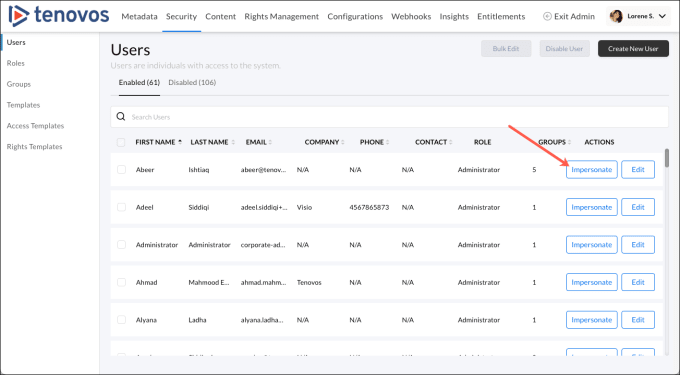
In Admin > Security, Users page lists the Enabled and Disabled accounts for your system. In addition to creating, editing, and impersonating individual user accounts, you can also Bulk Edit user details.
The Users page displays the following information about each user:
- First Name. The user's first name.
- Last Name. The user's last name.
- Email. The user’s email address.
- Company. The user’s organization.
- Phone. The user’s phone number.
- Contact. Internal contact name.
- Role. The role assigned to the user.
- Groups. The number of groups assigned to this user.
- Last Updated. The date and time when the user profile was last modified.
- Impersonate. Validate the Tenovos experience for the user account.
- Actions. Edit the user profile.
To sort the list in ascending or descending order based on a heading, click the First Name, Last Name, Email, Company, Phone, Contact, Groups, or Last Updated column heading.
Create a user profile
To create a user profile:
- In Admin > Security > Users, click Create New User. The User Details page opens.
- Choose an Account Type:
- Local. The user can access their Tenovos account from a local device.
- Federated. Users can access multiple applications and domains with a single set of credentials.
- Provide required information about the user: First Name, Last Name, Email, and Friendly Name. These details are not case-sensitive.
- Provide any optional information: Phone number, Company name, Country name, internal Contact name.
- Select the user’s Role.
NOTE: You cannot assign roles that have more administrative privileges than your own. - Select the user’s Group membership. To select additional groups, click Add Group.
- Save your settings. The new user is added to the Users page and is Enabled.
Edit a user profile
To edit a user profile:
- In Admin > Security > Users, scroll to or Search for the user profile.
- Click the profile’s Edit button to open the User Details for that user.
- Make your changes then click Save. You are returned to the Users page. The Last Updated information for the user profile is modified to reflect the date and time you saved your changes.
NOTE: When creating or editing user accounts, you cannot assign roles that have more administrative privileges than your own.
Bulk Edit user profiles
You can modify the Company, Country, Contact, Role, and Groups of multiple user accounts at a time.
To edit multiple user profiles at once:
- In Admin > Security > Users, select the check boxes of the user profiles to modify.
- Click Bulk Edit to open the User Details for the users.
- Make your changes and click Save.
Disable a user account
You can disable one or more user accounts at the same time.
To disable a single user account, go to Admin > Security > Users > Enabled and select a user's checkbox, then click Disable User in the top right.
To disable one or more user accounts:
- In Admin > Security > Users > Enabled, select the check boxes of the user profiles to disable.
- Click Disable User.
- At the confirmation prompt, click Yes. The users are deactivated and moved from the Enabled tab to the Disabled tab on the Users page.
Enable a user account
You can enable one or more user accounts at the same time.
To enable a single user account, go to Admin > Security > Users > Disabled and select a user's checkbox, then click Enable User in the top right.
To enable one or more user accounts:
- In Admin > Security > Users > Enabled, select the check boxes of the user profiles to enable.
- Click Enable User.
- At the confirmation prompt, click Yes. The users are reactivated and moved from the Disabled tab to the Enabled tab on the Users page.
Impersonate a user
Administrative users with the User Management role privilege can impersonate other users to validate their Tenovos experience and troubleshoot access to content or other features.
Administrators can impersonate users with the same or fewer administrative privileges, but not those with higher privileges.
This section explains how to impersonate user accounts, including which accounts you can and cannot impersonate. It also covers how to recognize when you're impersonating someone and how to properly end an impersonation session to maintain security.
IMAGE: Admin > Users > Impersonate
This section includes the following topics:
- User accounts that you can impersonate
- User accounts that you cannot impersonate
- Impersonate a user
- End an impersonation session
User accounts that you can impersonate
You can impersonate:
- Both Local and Federated user accounts.
- Users with the same administrative privileges as you.
- Users with fewer administrative privileges than you, as long as their privileges are the same as yours.
User accounts that you cannot impersonate
You cannot impersonate a user in the following cases:
- The user has higher or or different administrative privileges than yourself. This prevents users from impersonating an Admin to gain elevated privileges.
- While you are actively impersonating another user.
- The user has a federated account but has never logged into the system. Even if the account is Enabled, you will receive an error if they haven't logged in.
Impersonate a user
Impersonating a user in the system allows you to access their account and perform actions on their behalf.
To impersonate a user:
-
In Admin > Security > Users, find the user and click Impersonate. The following message appears:
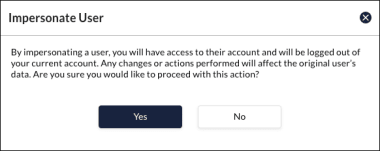
To proceed, you must acknowledge that when you impersonate a user, you will have access to that user's account and any actions you perform will affect that user's data. While impersonating, any assets you upload will include the impersonated user's information under "System Created By" in Asset Details.
-
In the Impersonate User dialog, click Yes to continue.
The system will log you out and refresh the screen. The following indicators inform you that you are impersonating a user:
(1) A glow around the user avatar icon in the top right corner
(2) A message in the top right. You can close this message.
(3) A banner at the bottom of the page showing the impersonated user's name, with an option to log out.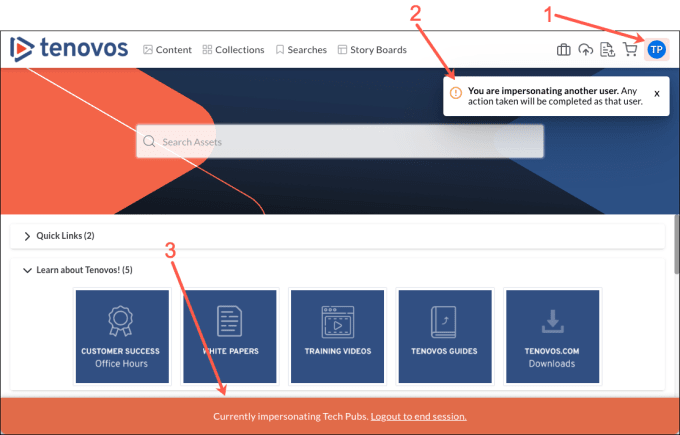
End an impersonation session
Ending an impersonation session properly ensures that you return to your own account and maintain security.
IMPORTANT: While the system can automatically log you out after an hour, we recommend that you manually end the session to control the process.
There are various ways to end an impersonation session:
- User menu: Select Stop Impersonation to log out of the impersonated account and return to your own account.
- User menu: Choose Logout to log out of the impersonated account and sign into your own account.
- Bottom banner: Click Logout to end session to end the session and log in with your own account.
- Automatic expiration: Allow the impersonation session to automatically expire. This occurs 1 hour after you begin the impersonation, regardless of activity.
Roles
Roles are sets of privileges that can be assigned to one or more users. Role privileges determine what a user can and cannot access in the system, for example, Bulk Operations, the Content gallery, and Collections. Each user can only be assigned one role.
NOTE: The ability to create and update user roles requires the Role Management administrative privilege. User accounts with both the User Management and Security Template Management privileges automatically have the Role Management privilege.
View the Roles page
To display the Roles page, go to Admin > Security > Roles.
About the Roles page
In Admin, the Security > Roles page lists all the roles that have been created in your system. In addition to creating, editing, and impersonating individual user accounts, you can also Bulk Edit user details.
The Users page displays the following information about each user:
- Role Name. The name of the role.
- Number of Privileges. The total number of privileges assigned to this role.
- Number of Users. The total count of users who are assigned this role.
- Created Date. The date this role was created.
- Last Updated. The date and time this role was last updated.
To sort the list in ascending or descending order based on a heading, click the Role Name, Number of Privileges, Number of Users, Created Date, or Last Updated column heading.
To delete a role, click its Delete (x) button.
Role Privileges
Role privileges control users' ability to perform actions like Delete, Download, and Edit Metadata.
The set of privileges available depends on your Tenovos system configuration. A full list of role privileges and their function is available by clicking on any role in Admin > Security > Roles.
NOTE: The ability to manage a role's set of privileges requires the Role Management administrative privilege. User accounts with both the User Management and Security Template Management privileges automatically have the Role Management privilege.
Create a role
To create a role:
- In Admin > Security > Roles, click Create New Role. The Role Details page opens.
- Enter a Role Name.
- Select the privileges for this role.
- To display a consent form at login to all users assigned this role, click Edit Consent. Enter the consent text, then close the dialog box.
- Click Save.
The new role is added to the Roles list. All users assigned this role will be assigned the selected privileges. If text was provided, they will also be presented with a consent form at login.
Edit a role
You can edit the privileges and consent form for a defined role.
To edit a role:
- In Admin > Security > Roles, search for or scroll to the role.
- Click the role to open its definition screen.
- Make your changes to the assigned privileges and/or consent form.
- Click Save.
Add a consent form to the login process
You can require that some users accept specific terms and conditions before accessing the Tenovos platform. When you attach a consent form to a Role, it is displayed after users login and before they are authenticated. They must accept the usage requirements before they can proceed.
The ability to Accept or Reject the terms and conditions is enabled after the user scrolls to the bottom of the consent form. Clicking Accept allows the authentication to proceed. Clicking Reject routes the user back to the login page.
Consent forms are part of a role definition. To add a consent form to a role, Create a role or Edit an existing role, click Edit Consent, and add the required text.
Delete a role
You can delete a role that has no users assigned to it.
To delete a role:
- In Admin > Security > Roles, search for or scroll to the defined role.
- Click Delete (x) for that role.
- At the confirmation prompt, click Confirm. The role is deleted.
View the users assigned to a role
To view a list of the users assigned to a role, open the role’s definition screen and display its Users tab. The list is read-only. To remove users, you must remove the role from the user’s profile.
User groups
User groups contain a set of users which perform similar functions and should have similar access permissions to Tenovos features. Users must belong to at least one group, but may belong to many.
Creating a user group requires no configuration beyond providing a group name. Groups are implemented through security templates, which define a set of groups and configure the permissions granted to members of each of those groups. Applying a security template to an asset will grant users the permissions specified for their group on that asset.
NOTE: The ability to create and update user groups requires the User Management administrative role privilege.
View the user Groups page
To view the user Groups page, go to Admin > Security > Groups.
About the user Groups page
In Admin, the Security > Groups page is where you define and manage the Tenovos user groups. It includes the following:
- Create New Group. Create a new user group.
- Search field. Search for a specific user group.
- Group Name. Name of the user group. This name appears in the Security > Users > User Details > Groups list.
- Created Date. Date when the user group was created.
- Last Updated. Date when the user group was last updated.
- Delete Group. Delete the user group.
You can click the Group Name, Created Date, or Last Updated column heading to sort the list in ascending or descending order based on that heading.
Create user groups
In Admin > Security > Groups, you can create a single group using Create New Group or create groups in bulk using Upload Groups.
When creating user groups in bulk:
- You can enter or paste a list of up to 50 names
- Each line can have a maximum of 50 characters.
- Each line of text will be created as a new group.
- Empty lines are ignored.
- Duplicate group names in the list are ignored. Only one will be created.
- An Upload Groups request cannot include an existing group name. To proceed, you must remove already-defined group names.
- The maximum number of defined user groups is 500. You cannot create an upload groups request that will push that total over 400.
CREATE A SINGLE USER GROUP
To create a single user group:
- In Admin > Security > Groups, click Create New Group. The New Group dialog box opens.
- Enter a name for the user group.
- Click Save. The New Group dialog box closes and the new user group is added to the Admin > Security > Groups page.
CREATE USER GROUPS IN BULK
To create user groups in bulk:
-
In Admin > Security > Groups, click Upload Groups. The Upload Groups dialog box opens.
-
Enter or paste a list of up to 50 group names, with a maximum of 50 characters per line.
When creating user groups in bulk:
- You can enter or paste a list of up to 50 names
- Each line can have a maximum of 50 characters.
- Each line of text will be created as a new group.
- Empty lines are ignored.
- Duplicate group names in the list are ignored. Only one will be created.
- An Upload Groups request cannot include an existing group name. To proceed, you must remove already-defined group names.
- The maximum number of defined user groups is 500. You cannot create an upload groups request that will push that total over 400.
-
Click Next to view a list of the groups that will be created.
-
Verify that the group names are correct. For each group, you can Edit its name or Delete its entry.
-
Click Save to create the user groups. Tenovos displays a status message of "Saving Groups," followed by "User Groups successfully created."
If your request contains errors, none of the groups in the request will be created. You must address the errors before you can proceed. Example error messages are "You've reached the maximum allowed user groups" and "Group already exists."
NOTE: After exiting the Upload Groups dialog box, you may notice that not all of your groups have been created. Don't worry—it is likely that your request is still processing. Wait a moment, then refresh the page to verify that your request succeeded.
Delete a user group
Deleting a user group removes all users and associated security templates from that group. User accounts and security templates are immediately updated after you confirm the group deletion.
For users who are assigned to a single user group, deleting that group will eliminate access to all assets by those users.
To identify user accounts which do not have a group assigned, you can sort the User table on Admin > Security > Users page by the count of groups assigned to individual users
To delete a user group:
- Go to Admin > Metadata > Groups and scroll to or Search for the group, then click its Delete icon.
- In the Delete dialog, type DELETE (it is case sensitive) to confirm the group removal.
- Click Confirm to remove the group, update user accounts and security templates, and return to the Admin > Security > Groups page.
Rename a security group
To rename a security group:
- Go to Admin > Metadata > Groups and scroll to or Search for the group, then click its entry to open its Rename Group dialog box.
- Click Save to confirm your changes and return to the Security > Groups page.
Security templates
A security template contains selected asset-level permissions that are granted to specified user groups. Security templates are applied to assets, shared collections, shared saved searches, story boards, story blocks, and brand tiles. They determine which user groups can access an asset and what they can do with that asset, for example Download, Delete, and/or Transform it.
Group Permissions
Depending on your system, your available permissions may include:
- Download
- Delete
- Relationships
- Assign Security Template
- PDF Preview
- Edit Metadata
- Purge
- Replace Preview
- Proof Initiation
- Transform
- Version Asset
- Modify Rights
- Request Download
NOTE: The ability to create and update security Templates requires the Security Template Management administrative role privilege.
View the security Templates page
To view the security Templates page, go to Admin > Security > Templates.
About the security Templates page
In Admin, the Security > Templates page is where you define and manage the Tenovos security templates. It includes the following:
- Create New Template button. Create a new security template.
- Search field. Search for a specific security template.
- Template Name. Name of the security template. This name is presented to users as a security template selection option when they upload assets or edit asset details.
- Number of permissions. The total number of permissions assigned to all the groups selected in this template. By default, all groups are assigned
- Number of Groups. The number of groups selected for this security template.
- Created Date. The date when the security template was created.
- Late Updated. The date when the security template was last updated.
- Duplicate. Create a copy of the security template.
- Delete. Delete the security template.
Create a security template
To create a security template, you must select at least one user group.
By default, all security templates include the asset View permission. That permission is included in the total permission count that is displayed on the Admin > Security > Templates screen. Selecting additional permissions is not required to create a security template.
To create a security template:
- In Admin > Security > Templates, click New Template.
- Enter a Template Name. The name can be a maximum of 75 characters.
- Select a user Group to associate with the security template.
- Select the Permissions for the user group. To give all available permissions to the group, click Select All.
NOTE: By default, all security templates include the asset View permission; it is not listed in the Permissions options. - Add additional groups and permissions, as necessary.
- Click Save. You are returned to the security Templates page and the new template is included in the list of templates.
Edit a security template
You can rename a security template or modify its group and permission selections.
When you first create a security template, you must select at least one user group. For existing security templates, associated user groups are not required; you can clear all group check boxes and save the template.
To edit a security template:
- In Admin > Metadata > Templates, scroll to or Search for the template. Then click its entry to open its configuration screen.
- Make your changes then click Save to confirm them and return to the security Templates page.
Delete a security template
You can delete any security template that is not currently in use.
To delete a security template:
-
In Admin > Metadata > Templates, locate the template and click its Delete icon.
NOTE: You cannot delete a template that is currently in use. If you attempt to delete a template that is in use, an error message will appear.
-
At the confirmation prompt, click Confirm.
Duplicate a security template
You can duplicate a security template from its configuration page or the security Templates page.
To duplicate a security template:
-
In Admin > Security > Templates, locate the template, then complete one of the following:
- Click its Duplicate button. The new template opens in its configuration page with the word “Copy” added to the original template name.
- Open its configuration page, then click Duplicate. The new template opens in its configuration page with the word “Copy” added to the original template name.
-
Make any required edits and then Save your changes.
Dynamically generated watermarking
This section introduces dynamically generated watermarking and explains:
- Watermarking and asset types
- Enabling watermarking
- Who will see watermarked assets?
- Adding watermarks to assets
- Download Request form and watermarked assets
Administrators can provide secure access to sensitive content by adding dynamically generated watermarks to Tenovos assets. The watermark is user-specific and includes the user’s email address, IP address, and a date/timestamp.
Watermarked asset (image) in Asset Details screen:

Watermarked asset (PDF) in Asset Details screen:
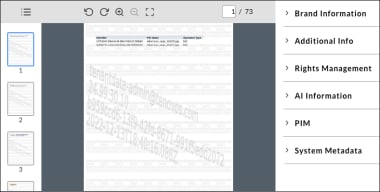
Dynamic watermarking is controlled by the Watermarked permission in the security template that is applied to the asset and by the groups the user is a part of for that security template. Groups with the Watermarked permission selected will see assets with a watermark.
Watermarking Security Template:
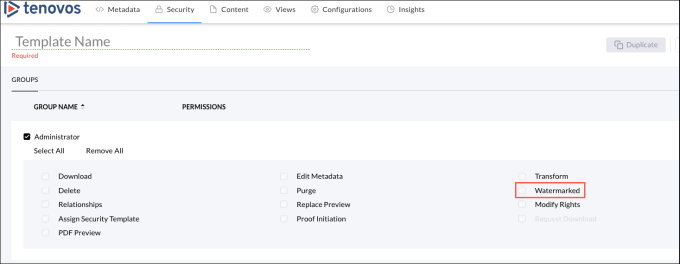
In a security template, if the:
- Watermarked check box is clear. Assets are not watermarked for that user group.
- Watermarked check box is selected. Assets are watermarked for that user group.
NOTE: For details about what happens when users are members of multiple groups, see Who will see watermarked assets?
Watermarking and asset types
Tenovos can apply dynamic watermarks to all supported asset type previews including:
- Images. Watermarked previews.
- Videos. Watermarked previews and playback.
- Microsoft Word, Excel, and PowerPoint documents. Watermarked previews and pages.
- PDFs. Watermarked previews and pages.
NOTE: Tenovos applies watermarks to the first 500 pages of a document (Word, Excel, PowerPoint, and PDF). The pages after the first 500 are not watermarked.
Enabling watermarking
Watermarking is a license-enabled option in the Tenovos Platform. Please contact your Account Representative to enable this feature.
Who will see watermarked assets?
For a security template applied to an asset, users in a group without the Watermarked permission will see the asset without a watermark. Users in a group with the Watermarked permission selected will see a watermarked asset.
Users who are members of multiple groups with a mixture of the Watermarked permission enabled and disabled will see the un-watermarked asset. In other words, users in a group without the Watermarked permission will see the un-watermarked asset, even if another group they are a member of has the Watermarked permission enabled.
For example, given a security template named “Restricted” with two selected user groups—an “Administrator” group without the Watermarked permission enabled and a “Marketing” group with the Watermarked permission enabled—who will see watermarks on the assets with that security template applied?
- A user who is only a member of the “Administrator” group will see all assets without a watermark.
- A user who is only a member of the “Marketing” group will see all assets with a watermark.
- A user who is a member of both the “Administrator” group and the “Marketing” group will see all assets without a watermark.
Multiple security templates can be applied to an asset. In that case, the preceding rules still apply, but take all security templates and group membership into account.
Given a security template named “Restricted,” who will see a watermark on the asset?
| User is a member of: | Watermarked permission is enabled for the user group: | Asset is watermarked | Asset is NOT watermarked |
|---|---|---|---|
| "Administrator" group only | NO | - | X |
| "Marketing" group only | YES | X | - |
| Both the "Administrator" and "Marketing" groups | "Administrator" group: NO "Marketing" group: YES | - | X |
Adding watermarks to assets
Dynamically generated watermarking on assets is determined by the Watermarked setting in the security template applied to those assets.
To add a watermark to assets:
-
Create a security template (Admin > Security > Templates).
-
Select user group(s) for that security template.
-
Select permissions for each user group including Watermarked—All downloaded assets will be watermarked.
- Selecting the Watermarked permission deselects and grays out the asset Download and Transform permissions. The user can only download a watermarked copy of the asset.
- Users who are members of multiple groups with a mixture of the Watermarked permission enabled and disabled will see the unwatermarked asset.
-
Apply the security template to the applicable asset(s).
Download request form and watermarked assets
A Download Request form controls asset downloads while also collecting data about those assets—who is downloading the assets and why. If a Download Request form (i.e., metadata template) is applied to an asset, users must provide the information requested by that form and submit the request for approval before they can download or share the asset.
When an administrator approves the download request, the user will be able to download the unwatermarked asset. The approved Download Request overrides the Watermarked permission set by the asset’s security template.
Access templates
This section introduces access templates and includes the following topics:
- Access templates and uploading assets
- Access templates and editing assets
- Access template permissions
- Create an access template
- Edit access templates
- Delete access templates
- Apply access templates to a metadata template
- Modify the access templates applied to a metadata template
Access templates grant selected user groups access to metadata templates. When an access template is applied to a specific metadata template, only members of the user groups specified in the access template will be able to view or edit that metadata template. Members of all other user groups will not see it.
-
If an access template is added to a metadata template, only those users in the user groups defined in the access template will be able to view, apply, or edit the metadata template.
-
If an access template is added to a metadata template, those users NOT in the user groups defined in the access template will NOT be able to view, apply, or edit the metadata template.
-
If NO access template is applied to a metadata template, ALL users will be able to view, apply, or edit the metadata template.
NOTE: The ability to create and update Access Templates requires the Security Template Management administrative role privilege.
Access templates and uploading assets
When an access template is applied to a metadata template, only those users in the user groups defined in the access template will see that metadata template. When they open the Upload Assets page to upload, the template will be listed in the Select Metadata Template dropdown list. All other users will not see the metadata template listed.
Access templates and editing assets
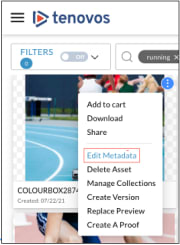
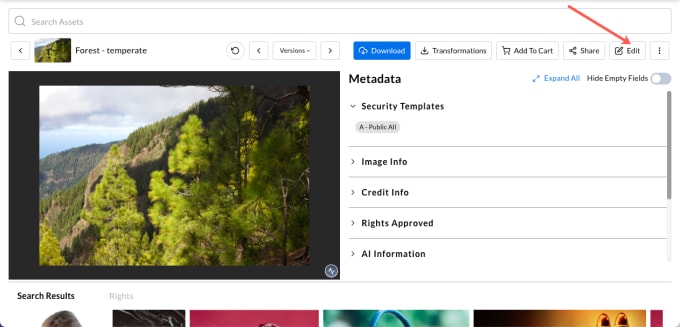
When an access template is applied to an asset’s metadata template, only those users in the user groups defined in the access template will see the Edit Metadata button in the asset’s tools menu and in the Asset Details screen. All other users will not see the Edit Metadata option.
Asset tools menu > Edit Metadata:
Asset Details screen > Edit metadata:
Access template permissions
Creating, managing, and applying access templates requires the View Management administrative privilege and access to the Tenovos Admin pages.
Users with any one of the following privileges can access the Admin pages:
- Metadata Template Management
- Security Template Management
- Content Transformation Management
- Rights Management
- Rights Maintenance
Create an access template
To create an access template:
-
In Admin > Security, select Access Templates. The Access Templates page is displayed.
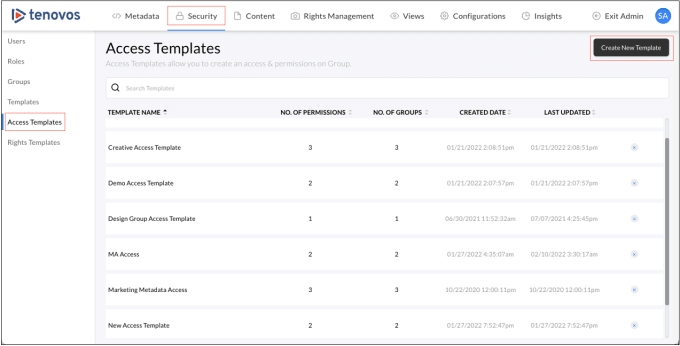
-
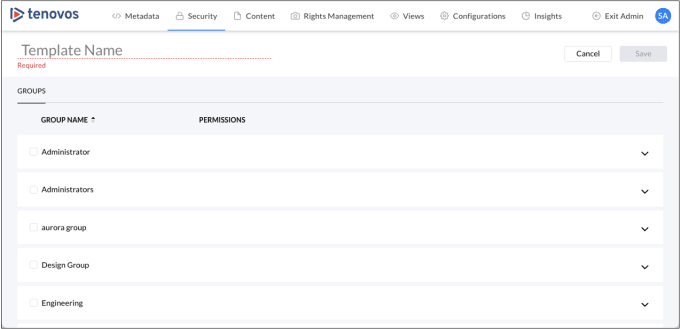
Click Create New Template. The new access template screen opens. It lists all Tenovos User Groups defined in Admin > Security > Groups.
-
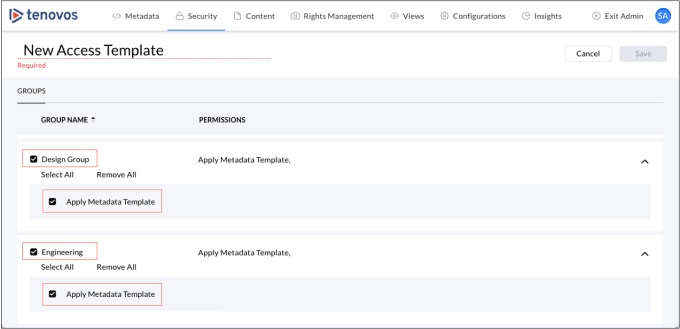
Select the user Group Name(s) that will be able to view or edit the metadata template.
Then for each group, select Apply Metadata Template to enable the template for that group.
-
Enter a Template Name. The name can be a maximum of 75 characters.
-
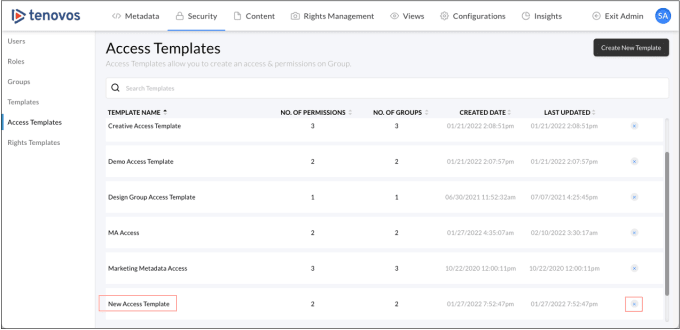
Click Save. Tenovos saves the new access template and it is added to the Access Templates list.
Edit access templates
To edit an access template:
-
In Admin > Security, select Access Templates. The Access Templates page is displayed.

-
Click the access template you want to modify.
-
Update the user group(s) that will be able to:
- View. See the metadata template in a selection list.
- Edit. Edit the metadata template. Selecting Edit automatically adds the ability to View the metadata template.
- Apply Metadata Template. Users can apply the metadata to existing assets and assets they upload.
-
Save your changes.
Delete access templates
To delete an access template:
-
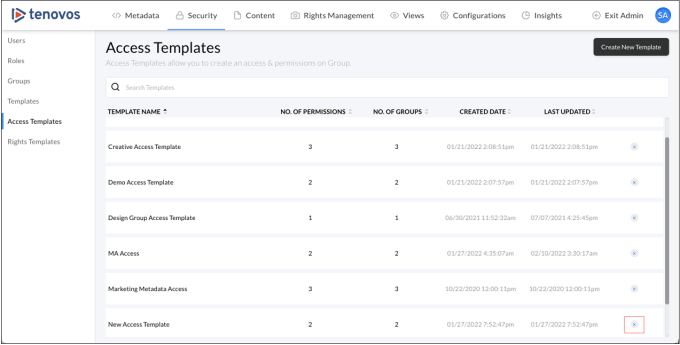
In Admin > Security, select Access Templates. The Access Templates page is displayed.
-
Click Delete for the access template you want to remove. A confirmation prompt appears.

-
Click Confirm to complete the deletion request.
Apply access templates to a metadata template
One or more access templates can be applied to a new or existing metadata template.
To apply access templates to a new or existing metadata template:
-
In Admin, display the Metadata > Templates page. Then click New Template to open a new metadata template page. Or click an existing metadata template to open its page.

-
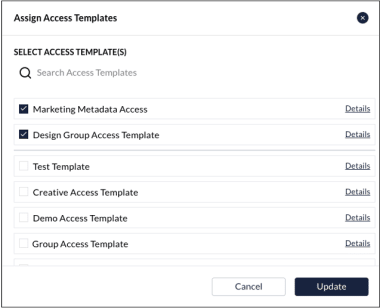
Click Add Access Templates to open the Assign Access Templates window.
NOTE: For new metadata templates, you must add at least one group to view the Add Access Templates button.
-
From the list of available access templates, select one or more that you want applied to the current metadata template. Then click Update to add your selections to the metadata template.
NOTE: You can add multiple access templates to a single metadata template.

-
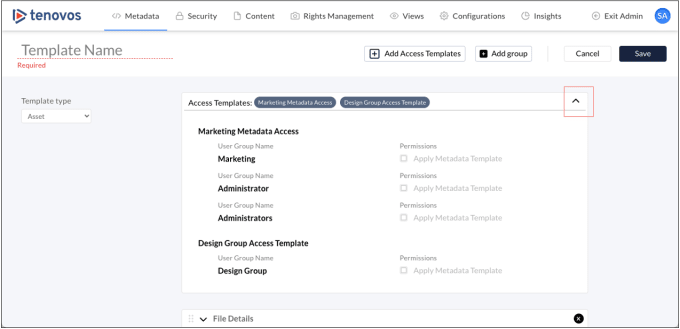
Click the Access Templates down arrow to display additional details about the access templates you selected, including the user groups each access template applies to and their Permissions.
-
Click Save to apply the change to the metadata template.
Modify the access templates applied to a metadata template
You can add access templates to or remove them from an existing metadata template.
To change the access templates that are applied to a metadata template:
-
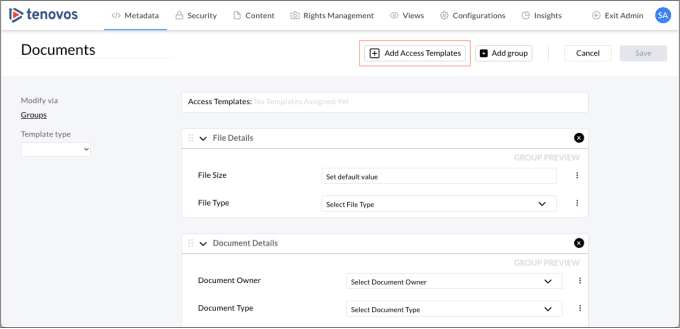
In Admin, display the Metadata > Templates page. Then click an existing metadata template to open its page.
-
Click Add Access Templates to open the Assign Access Templates window.

- Clear the check boxes of the templates to remove.
- Select the check box es of the templates to add.
-
Click Update to save your changes and return to the metadata template screen.
-
Click Save to save the metadata template updates.