Relationships
Asset relationships are the defined connections or dependencies between assets. Asset relationships group together the derivatives, children, and placed graphics on the Asset Details page of the parent asset. This allows you to have quick access to related assets like edited versions or assets in similar marketing campaigns.
When defining relationships between assets, you select the parent, then link other assets to that parent. The linked assets are child assets—these are secondary assets which include derivatives and Placed Graphics.
-
Relationship. The defined connections or dependencies between assets.
-
Parent. The top-level asset. It can have one or more secondary child assets.
-
Child. The secondary asset. It can have many parent relationships and may be a parent itself.
-
Derivative. The secondary asset, but it is created from the parent asset. Examples of a derivative from a parent are cropped images, transformations, and the same image with overlay text.
-
Placed Graphics. The secondary asset, but it is an element of the parent asset. Placed graphics are used in Adobe InDesign projects.
An example of a parent/child relationship is a marketing image containing three products. Using Tenovos asset relationships, you can declare the marketing image the parent asset and other images of the products in the picture as child assets. This helps you quickly find other pictures of the products in the marketing image.
Create a Relationship
Asset relationships can be created via an asset’s Asset Details or by selecting the parent and child assets in the Content gallery, a collection, the Cart, or search results.
Create relationships from Asset Details
When you create relationships from an asset’s Asset Details, that asset is automatically defined as the Parent Asset. If necessary, you can replace it with another parent asset.
To create relationships from Asset Details:
-
Click an asset to open its Asset Details.
-
Click Manage Relationships. The relationships screen opens with the asset selected as the Parent Asset.
NOTE: By default, the asset is defined as the primary asset in the relationships you are creating. If necessary, you can replace it with another parent asset.

-
At the bottom of the relationships screen, click Select More Assets. The Content gallery is displayed.
-
In the Content gallery, select the child assets. Or you can navigate to a collection, the Cart, or search results and select the child assets from one of those locations.
-
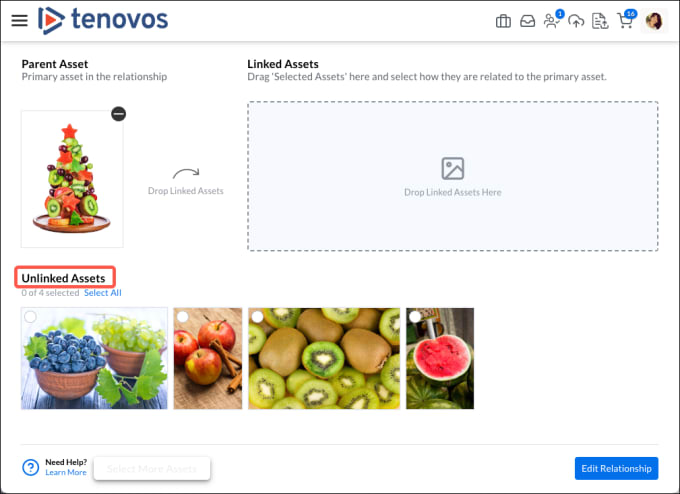
Open the task bar menu and click Manage Relationships. The relationships screen opens with your selections displayed as Unlinked Assets.
-
Drag and drop the Unlinked Assets to the Linked Assets drop box. You can drag them individually or Select All and drag and drop them simultaneously.
-
To remove a linked asset, click its Remove icon. It is returned to the Unlinked Assets section.
-
To replace the Parent Asset, click its Remove icon. Then drag and drop another primary asset to replace it.
NOTE: Removing a Parent Asset also clears all the Linked Assets selections.
-
-
For each secondary asset, specify if it is a:
- Child. (Default.) The asset is associated with the parent asset.
- Derivative. The asset was created based on the parent asset.
- Placed Graphic. The asset is linked to the parent asset. This applies to Adobe InDesign projects.

-
Click Edit Relationship. Then at the confirmation prompt, click Confirm.
Tenovos processes the request and displays a confirmation message. You are returned to the Content gallery.
-
To confirm the relationships, open the Asset Details of the parent or any child. All relationships for that asset are displayed in the Relationships section, accessible via the asset information menu.

Create relationships by selecting multiple assets
To create relationships by selecting multiple assets:
-
In the Content gallery, a collection, the Cart, or search results, select the parent and child assets.
-
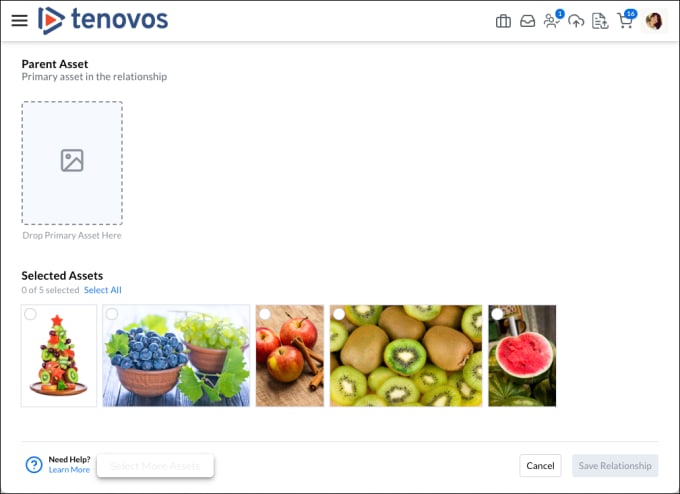
Open the task bar menu and click Manage Relationships. The relationships screen opens with the Selected Assets displayed.
-
Drag the primary asset in the relationship to the Parent Asset drop box. After you specify the parent asset, the Linked Assets drop box is displayed.
-
Drag and drop the remaining Unlinked Assets to the Linked Assets drop box. You can drag them individually or Select All and drag and drop them simultaneously.
- To remove a linked asset, click its Remove icon. It is returned to the Unlinked Assets section.
- To replace the Parent Asset, click its Remove icon. Then drag and drop another primary asset to replace it.
NOTE: Removing a Parent Asset also clears the Linked Assets selections.
-
For each secondary asset, specify if it is a:
- Child. (Default.) The asset is associated with the parent asset.
- Derivative. The asset was created based on the parent asset.
- Placed Graphic. The asset is linked to the parent asset. This applies to Adobe InDesign projects.
-
Click Edit Relationship. At the confirmation prompt, click Confirm.
Tenovos processes the request and displays a confirmation message. You are returned to the Content gallery.
-
To confirm the relationships, open the Asset Details of the parent or any child. All relationships for that asset are displayed in the Relationships section, accessible via the asset information menu.
View a Relationship
The Asset Details page includes information about an asset’s relationships. If none exist, the Relationships section is not available. In the following Asset Details example, the asset has a derivative (the 1080x1080 Product Launch Shot).
To view asset relationships:
- Locate the asset and open its Asset Details.
- At the top of the page, click Relationships in the asset information menu. A secondary menu will appear on the right side of the page, letting you view all the related files by relationship type.
- Click an asset thumbnail to open the Asset Details for that asset.
Edit a Relationship
You can edit relationships from the Asset Details screen or via Manage Relationships in the task bar menu of the Content gallery, a collection, the Cart or search results.
To edit a relationship:
-
Open the Asset Details of the parent or child asset. All relationships for that asset are displayed in the Relationships section at the bottom of the screen.
NOTE: If the Relationships section is not available, the asset has no defined relationships, either as a parent or child.
-
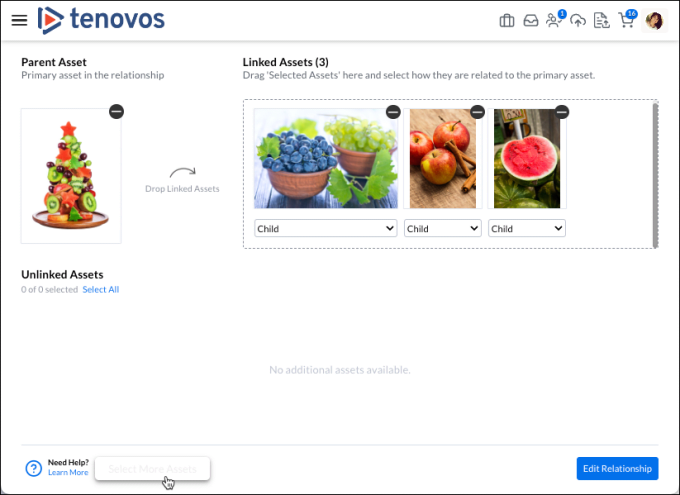
In Asset Details, click Manage Relationships. The relationships screen is displayed.
NOTE: You can also do this from the Content gallery, a collection, the Cart or search results. Select the asset, open the task bar menu, and click Manage Relationships. The relationships screen for that asset is displayed.
-
To add secondary assets to a parent, click Select More Assets at the bottom of the screen. The Content gallery is displayed.
You can select assets in the Content gallery or navigate to a collection, saved search, or the Cart and select assets. Then open the task bar and click Manage Relationships.
You are returned to the relationships screen with the selected assets in the Unlinked Assets section. Move the assets to the Linked Assets section and specify if each secondary asset is a Child, Derivative, or Placed Graphic.
-
To remove secondary linked assets, click the asset’s Remove icon. It is moved from Linked Assets to the Unlinked Assets section.
-
To edit the relationship type of Linked Assets, open the asset’s dropdown menu and choose either Child, Derivative, or Placed Graphic.
-
-
To save your changes, click Edit Relationship. At the confirmation prompt, click Confirm. The request is submitted and you are returned to the Content gallery.