Search for assets
You can search Tenovos to find the exact assets you need. Searches allow you to locate assets based on keywords that you provide. Filters allow you to locate assets based on specific metadata. To further refine your search results, you can combine searches and filters.
In the Content gallery, the Tenovos search bar includes the option to conduct a targeted search. This allows you to add even more granularity by searching against specific data including Everything, Asset ID, File Name, Metadata, and Content.
What type of search are you running?
Tenovos offers two types of searches—legacy search and relevancy search. Your Tenovos system uses one of the two types, not both.
-
Legacy searches return a list of assets that match your search terms and specifications. You can submit a keyword search, partial wildcard search, or a phrase search. For added specificity, you can apply AND/OR, inclusion/exclusion, and delimiters to your search terms. And then filter your results for additional granularity.
Systems running legacy search display an AND/OR toggle in the search bar:

-
Relevancy search results are returned based on a relevancy scoring hierarchy and relevancy score boosting. Assets that match all the search terms, in the exact order specified, and in a single field (and that you are permitted to view) are at the top of the results list.
Systems running relevancy search display a magnifying glass in the search bar:

The Search Assets bar is available on the Home page and in the Contentgallery. Search results are displayed in the Content gallery.
💡 Tip:
Do you want to know what type of search your Tenovos system is running? Look at the Search Assets bar in the Content gallery! If it displays an And/Or toggle, you're using legacy search. If it displays a magnifying glass, you're using relevancy search.
Based on the type of search your system uses, you will refer to either the Legacy searches section or the Relevancy searches section in this guide. All other sections apply to both types of searches. They include:
- Working with search results
- Targeted search
- Filtered search
- Search words pasted from tables
- Saved searches
Legacy searches
Legacy searches return a list of assets that match your search terms and specifications. You can submit a keyword search, partial wildcard search, or a phrase search. For added specificity, you can use AND/OR Boolean operators to narrow or broaden search results, or specify keywords to include or exclue in search results. And then filter your results for additional granularity.
Top asset results are presented by date created. Assets that you do not have permission to view are not included in search results, even if they match your search criteria.
NOTE: Tenovos offers two types of searches—legacy search and relevancy search. Your Tenovos system uses one of the two types, not both. Based on the type of search your system uses, you will refer to either this Legacy searches section or the Relevancy searches section in this guide.
💡 Tip:
Do you want to know what type of search your Tenovos system is running? Look at the Search Assets bar in the Content gallery! If it displays an And/Or toggle, you're using legacy search. If it displays a magnifying glass, you're using relevancy search.
This section explains how to conduct the following:
- Basic keyword search. Enter keywords to locate assets with the metadata that match your search terms.
- Partial wildcard search. Enter the first few letters of a keyword, followed by an asterisk (*) as a wildcard character.
- Phrase search. Surround keywords with quotation marks.
- AND/OR searches. Use AND/OR Boolean operators to narrow (AND) or broaden (OR) search results.
- Inclusion and exclusion searches. Specify keywords to include or exclude in search results.
- Searches with separation delimiters. Enter delimiter-separated terms manually or paste them from another document. The Search Assets bar divides search terms based on the space, comma, tab, and line break delimiters which separate them. You can enter the terms manually or paste them from another document.
Search for assets (legacy search)
A legacy keyword search is a basic search method that returns all assets whose metadata matches your search terms.
NOTE: When legacy search is enabled, top asset results are presented by date created. (With relevancy search enabled, the top results are assets with all search terms in a single metadata field, followed by assets with all search terms across all metadata fields. )
To perform a keyword legacy search:
-
On the Home page or in the Contentgallery, type a keyword in the Search Assets bar. As you type, Tenovos displays suggested options. Click a suggestion to search for it, or press Enter to run the search on your entry.
Search bar in Content gallery (legacy search). As you type, Tenovos displays suggested options.

Assets with metadata values matching your search term (and that you are permitted to view) are displayed in the Content gallery.
-
Continue adding criteria as necessary. By default, Tenovos searches for assets that meet all the criteria (the AND operator).
-
To search for a phrase, surround a search term in quotation marks. For more information, see Phrase search.
-
To include or exclude keywords in the search results, use the plus (+) and minus (-) symbols. For more information, see Inclusion and exclusion searches.
-
To locate only assets that include all the keywords, select the AND operator. This is the Search Assets bar default setting. For more information, see AND/OR searches.
-
To locate assets that include any of the keywords, select the OR operator. For more information, see AND/OR searches.
-
To narrow down the search results based on preset metadata filters, apply filters. For more information, see Filtered search.
-
-
To clear an individual search term, click its “X” in the Search Assets bar. That criterion is removed, and the search results are updated based on remaining criteria.
To remove all search terms, click Clear in the Search Assets bar.
NOTE: Clicking Clear in the Search Assets bar also removes applied filters.
Partial wildcard search
Partial wildcard search allows you to enter letters that the targeted filename might start with, end with, or contain. Users can specify these letters by placing asterisks before, after, or around them.
For example:
Search Term: cas*
Results: castles.png or cascade_map_diagram.pdf.
Search Term: *cas.jpg
Results: alpacas.jpg or harmonicas.jpg.
Search Term: *cas*
Results: dinnercasserole.jpg or medieval_castle.jpg.
NOTE: Asterisks are not needed if the search term is surrounded by spaces. For example, when searching for "map" in the file name castles map sky.jpg.
Wildcard searches are available for both legacy and relevancy search.
Phrase search
To search for a phrase, surround keywords with quotation marks.
For example, entering blue spruce searches for:

But entering “blue spruce” searches for:

AND/OR searches
In the Content gallery, the Search Assets bar includes the option to apply AND/OR Boolean operators to narrow or broaden search results.
AND. Searches for all terms. For example, the following is a search for assets that include the search criteria of “blue” AND “spruce”.

OR. Searches for any of the terms. For example, the following is a search for assets that include the search criteria of “blue” OR “spruce”.

Inclusion and exclusion searches
Specify keywords to include or exclude in search results. Assets with the specified inclusion keywords must be included in the search results. Assets with the specified exclusion keywords must be omitted from the search results.
-
Inclusion
Add the plus (+) symbol to search for inclusions. For example, entering
blue+sprucein the Search Assets bar finds all assets with “blue” AND “spruce” in the specified targeted search.
-
The plus (+) operator must immediately precede the search term (without a space), as shown in the example above.
-
An OR operator selection is overridden by the inclusion.
-
-
Exclusion
Add the minus (-) symbol to exclude assets from search results.
For example, enteringblue-sprucein the Search Assets bar finds all assets with “blue” in the specified targeted search and that do not contain “spruce”.
-
The minus (-) operator must immediately precede the search term (without a space), as shown in the example above.
-
Exclusion searches cannot include non-alpha-numeric characters. For example, instead of -Forest’s, use -Forest.
-
Selecting the OR operator will not change the search results; the exclusion overrides it.
-
Search term delimiters
The Search Assets bar divides search terms based on the space, comma, tab, and line break delimiters which separate them. You can enter the terms manually or paste them from another document.
SPACE DELIMITERS
Entering blue spruce forest in the Search Assets bar will split each word into its own search pill.
Text with spaces are split into individual search pills:
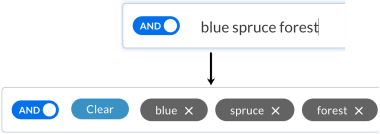
COMMA DELIMITERS
The commas in comma-separated words are treated like spaces. Comma-separated words are split into individual search pills. For example, entering blue, spruce, forest or blue,spruce,forest in the Search Assets bar results in three search pills.
Text with commas are split into individual search pills:

MULTIPLE WORDS THAT ARE COMMA-SEPARATED
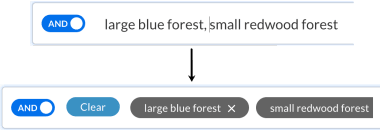
Multiple words that are comma-separated are treated as phrases. For example, entering large blue forest, small redwood forest in the Search Assets bar results in two search pills.
Multiple words that are comma-separated are treated as phrases:
TAB DELIMITERS
When pasted into the Search Assets bar, the tabs in tab-separated values are converted to commas.
To search for tab-separated values:
-
Copy and paste the tab-separated values. For example, paste
**blue**(tab)**spruce**(tab)**redwood**(tab)**forest**into the Search Assets bar. The tabs are converted to commas.
-
Press Enter. The values are separated into four search pills.

LINE-BREAK DELIMITERS
When pasted into the Search Assets bar, line breaks are converted to commas.
For example, when pasting the following into the search bar:
blue spruce redwood forest
The line breaks are converted to commas:
The values are separated into four search pills:
Relevancy searches
Relevancy search results are returned based on a relevancy scoring hierarchy and relevancy score boosting. Assets that match all the search terms, in the exact order specified, in a single field (and that you are permitted to view) are at the top of the results list.
Assets that you do not have permission to view are not included in search results, even if they match your search criteria.
NOTE: Tenovos offers two types of searches—legacy search and relevancy search. Your Tenovos system uses one of the two types, not both. Based on the type of search your system uses, you will refer to either the Legacy searches section or this Relevancy searches section.
💡 Tip:
Do you want to know what type of search your Tenovos system is running? Look at the Search Assets bar in the Content gallery! If it displays an And/Or toggle, you're using legacy search. If it displays a magnifying glass, you're using relevancy search.
About relevancy score hierarchy
The order in which results are returned is based on the following relevancy scoring hierarchy, with results matching all the search terms—in the exact order specified—in a single field at the top of the list.
-
Results with an exact match in the exact order in a single field.
-
Results matching all the search terms in a single field.
-
Results matching all the search terms across all metadata fields. This is the same as the AND operator.
-
Results matching any of the search terms across all metadata fields. This is the same as the OR operator.
About relevancy score boosting
For each relevancy scoring hierarchy category, the relevancy scores are boosted in this order:
-
Search terms found in metadata.
-
Search terms found in filenames.
-
Search terms found in text extracted from the document file type.
-
Search terms found in Technical Metadata.
NOTE: If you have disabled Technical Metadata searching, assets with the search terms in their Technical Metadata will not be returned.
Additionally, a higher occurence of a search term boosts its relevance. For example, if the search is the green tree, and Asset A has tree in metadata two times, and Asset B has tree in metadata only once, Asset A will rank higher.
Search for assets (relevancy search)
Relevancy searches return all assets whose metadata matches your search terms. You can apply filters to a simple search for more specific results. The order in which results are returned is based on a relevancy score hierarchy and relevancy score boosting.
NOTE: With relevancy search enabled, the top results are assets with all search terms in a single metadata field, followed by assets with all search terms across all metadata fields. (When legacy search is enabled, top asset results are presented by date created.)
To perform a keyword relevancy search:
-
On the Home page or in the Contentgallery, type a keyword in the Search Assets bar. As you type, Tenovos displays suggested options. Click a suggestion to search for it, or press Enter to run the search on your entry.
Search bar on Home page (relevancy search). As you type, Tenovos displays suggested options.
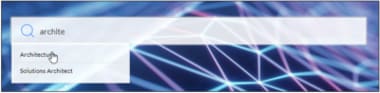
Search bar in Content gallery (relevancy search):
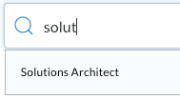
Assets with metadata values matching your search term (and that you are permitted to view) are displayed in the Content gallery.
-
Continue adding criteria as necessary.
- To narrow down the search results based on preset metadata filters, apply filters. For more information, see Filtered search.
- When you clear an individual search term, the search results are updated based on remaining criteria.
- To remove all search terms, click X in the Search Assets bar. NOTE: Clicking X in the Search Assets bar also removes applied filters.
Partial wildcard search
Partial wildcard search allows you to enter letters that the targeted filename might start with, end with, or contain. Users can specify these letters by placing asterisks before, after, or around them.
For example:
Search Term: cas*
Results: castles.png or cascade_map_diagram.pdf.
Search Term: *cas.jpg
Results: alpacas.jpg or harmonicas.jpg.
Search Term: *cas*
Results: dinnercasserole.jpg or medieval_castle.jpg.
NOTE: Asterisks are not needed if the search term is surrounded by spaces. For example, when searching for "map" in the file name castles map sky.jpg.
Wildcard searches are available for both legacy and relevancy search.
Phrase search
Phrase search is applicable to legacy searches but is not needed in relevancy searches. In a relevancy search, every word is treated as a search item.
AND/OR searches
AND/OR Boolean operators apply to legacy searches but are not needed for relevancy searches. In a relevancy search, the algorithm automatically returns matches that meet all, some, or only one of the entered search terms based on relevancy. (For details see, Relevancy score hierarchy and Relevancy score boosting.)
Inclusion and exclusion searches
Specify keywords to include or exclude in search results. Assets with the specified inclusion keywords must be included in the search results. Assets with the specified exclusion keywords must be omitted from the search results.
Inclusion and exclusion searches are supported in both legacy searches and relevancy searches. (An inclusion search is basically the same as a keyword search.)
-
Inclusion
Add the plus (+) symbol to search for inclusions.
For example, enteringblue+sprucein the Search Assets bar finds all assets with “blue” AND “spruce” in the specified targeted search.The plus (+) operator must immediately precede the search term (without a space).
-
Exclusion
Add the minus (-) symbol to exclude assets from search results.
For example, enteringblue-sprucein the Search Assets bar finds all assets with “blue” in specified targeted search and that do not contain “spruce”.- The minus (-) operator must immediately precede the search term (without a space).
- Exclusion searches cannot include non-alpha-numeric characters.
For example, instead of-Forest’s, use-Forest.
Search term delimiters
The Search Assets bar divides search items based on the space, comma, tab, and line break delimiters which separate them. You can enter the values manually or paste them from another document.
NOTE: For relevancy searches, the ability to copy and paste items is limited to targeted searches for Asset ID.
SPACE DELIMITERS
Asset IDs separated by spaces are split into individual search items.
Text with spaces are split into individual search pills:
COMMA DELIMITERS
The commas in comma-separated asset IDs are treated like spaces. Comma-separated asset IDs are split into individual items.
MULTIPLE WORDS THAT ARE COMMA-SEPARATED
This feature is not applicable to relevancy searches.
TAB DELIMITERS
When pasted into the Search Assets bar, the tabs in tab-separated values are converted to commas.
LINE-BREAK DELIMITERS
When pasted into the Search Assets bar, line breaks are converted to commas.
Working with search results
Whether you perform a search in the Home page, the Contentgallery, or using a saved search, the results are displayed in the Content gallery.
Search results in Grid View:

You can display the search results in Grid View, List View, or Masonry View.
-
Grid View. Displays assets in a grid with large thumbnails, their names, and when they were created.
-
List View. Displays assets in a vertical list that contains a small thumbnail of the asset and basic information about the asset including its name, file size, and when it was created and last updated.
-
Masonry View. Displays assets as large thumbnails without displaying any metadata. The thumbnails have the same width and can be of different heights. Hovering over a thumbnail displays the asset filename.
To switch between views, click the view you want displayed.

Sort search results
You can sort search results based on any available metadata fields such as Created Date, Relevance, Last Updated, or File Name. Additional sort options may be available to your organization. By default, search results list assets by Relevance.
To sort search results:
Click Sort next to the Search Assets bar. Then choose an option in the Sort By list.

Targeted search
Targeted search allows you to add more granularity to your legacy or relevancy search and find what you need, faster. When enabled, targeted search adds a dropdown list to the Search Assets bar in the Content gallery. The list presents options that allow you to search against specific data including:
-
Everything. Searches all available data. This is the same as a “standard” search and is the default setting.
-
Asset ID. Searches for the original asset ID. Use this option when searching for a specific InDesign file in a package and you want to exclude all its linked assets from the results.
In an InDesign package, the asset IDs of linked assets are added to the metadata of INDD assets. Conducting a standard search for an Asset ID could result in multiple assets being returned since the IDs of the linked assets are added to the embedded metadata of an INDD file. Using this targeted search option of Asset ID allows you to match your ID entry (the search term) specifically against the original INDD file, with the Asset ID as the unique ID.
-
File Name. Performs exact and partial match searches against file names automatically, no need to wrap search terms in asterisks to return assets with a partial match.
-
Metadata. Searches only custom asset metadata. This search excludes filenames, Technical Information metadata, and the asset contents (for example, the extracted text of a PDF or InDesign file).
You can perform partial wildcard searches when conducting a targeted search with this Metadata setting. Partial wildcard searches allow users to enter letters that the targeted metadata might start with, end with, or contain. Users can specify these letters by placing asterisks before, after, or around them.
These examples exhibit what you could expect to see results for if the following search phrases were entered:
Search Term: cal*
Results: calligraphy or calories.Search Term: *cal
Results: local or chronological.Search Term: *cal*
Results: scale -
Content. Searches the text extracted at upload from document assets such as PDFs and InDesign files.
To perform a targeted search:
-
In the Contentgallery, click the targeted search dropdown list and select a search option: Everything, Asset ID, File Name, Metadata, or Content.

-
Enter your search query in the Search Assets bar.
-
Press Enter to view the search results.
Filtered search
Filters can be applied before or after a search and allow you to filter searches to include only assets with specific metadata. For example, a filtered search can narrow search results to only include image assets or assets created by a specific user.
Your permissions determine your filter options and the results that are presented to you.
The attributes that are present in your filter list, as well as the order they are presented in, is determined by the Filter Preset assigned to your user role.
Faceted search
The Filters panel displays a list of filter categories. Within each category you can select one or more facet filters to refine search results. The facet filters are available when you apply either standard filters or Enhanced Filters.
Using standard filters, you can select one facet per filter category. By default, this is a boolean AND search for the filters you select—the asset list is filtered to include only the assets that have all the attributes you select.
Using the Enhanced Filters option, you can make this a boolean OR search—filter for assets that include at least one of the attributes you select.
Apply standard filters
Using standard filters, you can select one facet per filter category. By default, this is a boolean AND search for the filters you select—the Content gallery asset list is filtered to include only the assets that have all the attributes you select.
The filters available to you will vary based on your organization and your role. Some standard filters include Asset Status, Asset Type, Color Profile, Content Type, Country, Dominant Color, Language, Region, System Created By, and System Content Type.
NOTE: To complete a boolean OR search—filter for assets that include at least one of the attributes you select—use Enhanced Filters. See Apply Enhanced Filters (AND/OR filters) for more information.
You can apply filters to your entire repository or to search results.
To apply standard filters:
-
Click the Filters bar to open the Filters panel.
-
Click a filter to expand the display and reveal its facet options.
-
Each facet displays the number of assets that include that attribute.

-
-
Navigate to a filter category and select an attribute check box. You can apply multiple filter categories but can only select one facet attribute for each category.
-
Tenovos updates the assets in the Content gallery as you make your selections.
-
By default, Tenovos completes a boolean AND search for the filters you select—the asset list is filtered to include only the assets with all the attributes you select.
NOTE: To select multiple facets in a filter category or to complete a boolean OR search, use Enhanced Filters. See the following section for details.
-
To remove an individual filter, clear its checkbox. That filter is removed, and the search results are updated based on remaining filters, if any.
-
To clear all filters in the Filters panel, click Clear in the Search Assets bar.
-
The number of selected Content filters is displayed at the top of the Filters panel.
-
To view a list of the applied filters, hover over the applied filters field below the Content filters total. You can click a filter’s X to remove that filter.
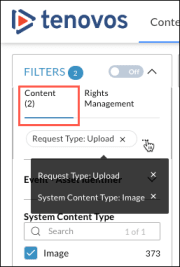
-
Apply Enhanced Filters (AND/OR filters)
In the Filters panel, use the Enhanced Filters option to select multiple facets in a filter category and apply AND/OR statements. AND is the default setting.
To apply enhanced filters:
-
Click the Filters bar to open the Filters panel, then set the Enhanced Filters toggle to On.
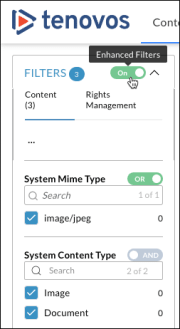
-
Navigate to a filter category and select the applicable attributes.
-
Tenovos updates the search results as you make your selections.
-
By default, Tenovos completes a boolean AND search for the filters you select—the search results are filtered to include only the assets with all the attributes you select.
-
To apply a boolean OR to the filters you select, click the filter category’s AND/OR toggle. With OR applied, the search results are filtered to include all assets with at least one of the selected attributes in a filter category.
-
To remove an individual filter, clear its checkbox. That filter is removed, and the search results are updated based on remaining filters, if any.
-
To clear all filters in the Filters panel, click Clear in the Search Assets bar.
-
The total selected Content filters is displayed at the top of the Filters panel.
-
To view a list of the applied filters, hover over the applied filters field below the Content filters total. You can click a filter’s X to remove that filter.

-
The AND/OR condition set on each enhanced filter applies only to the attribute values selected within that attribute filter. When filtering on multiple enhanced filters set to 'OR', the operation between those filters is still treated as 'AND'.
Exclude filter attributes from search results
When you exclude one or more attribute values from search results, all your search terms are inclusive, but assets with the attribute values you’ve selected for exclusion will not be included in search results.
- Mousing over an attribute value’s asset count displays the option to Exclude it.
- To clear the exclusion, hover over the asset count and click its Include option.
- Excluded values display a red strikethrough line.
The ability to exclude attribute values from search results is also available for Saved Searches.

Search for facets in Enhanced Filters
With Enhanced Filters on, you can use a filter category’s search field to quickly search for facets. To search for facets, type or paste a list of values separated by commas into a category’s search box. Tenovos displays the total number of values that were entered, the total values not found, and an option to select all found values. Clicking Select all values initiates a search for the available values.
To search for facets in a filter category:
-
With Enhanced Filters enabled and a filter’s facet level toggle set to OR, type or paste a list of comma-separated values into the filter category’s Search field.
Search for 9 values:
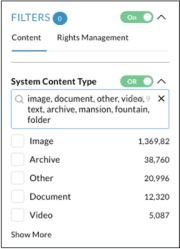
-
Press Enter. The filter’s Search bar displays the total number of values you entered (9), the total number of values that were not found (3), and the option to select all found values (6).
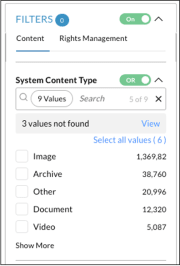
-
To view all the values you entered, click (x) Values.

-
To see a list of the values not found, click View.
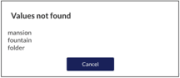
-
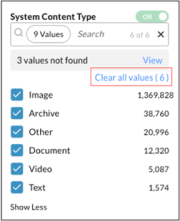
To instantly search for all available values, click Select all values. Tenovos selects all value check boxes and runs the search.
-
To clear the check boxes, click Clear all values.
-
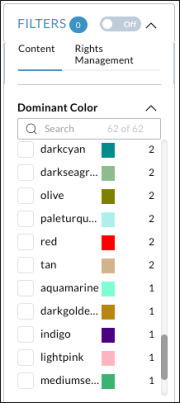
Filter: Dominant Color
The Dominant Color filter allows you to search for assets based on dominant color. The filter includes color names and a swatch for each color.
Search words pasted from tables
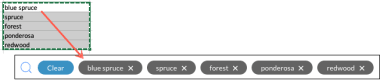
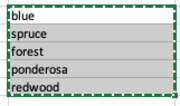
Keywords copied and pasted from a Microsoft Word or Excel table to the Tenovos search bar are comma-separated. Cells containing multiple keywords are entered as phrases.
Search Assets bar—Multiple keywords in a single cell are pasted as phrases:
Keywords copied and pasted from a multi-column table to the Tenovos search bar are entered row by row. For example, the words “blue spruce,” “ponderosa,” and “beech” from columns A, B, and C of row 1 in the following table are listed first in the search bar.
Search Assets bar—Keywords from a multi-column table are pasted row by row:

To search for values pasted from tables:
-
Copy multiple cells in a Word or Excel table.
-
Paste them into the Tenovos search bar. The cells are comma-separated.

-
Press Enter. Each cell entry is an individual pill. Cells containing multiple keywords are entered as phrases.

Saved searches
Saved searches allow you to store and quickly access frequently used search parameters within Tenovos, saving you from having to repeatedly enter the same search criteria. The results of a saved search depend on your user permissions and the assets available in the system, so they may update as new content is added or removed. You can create as many saved searches as needed—there is no limit.
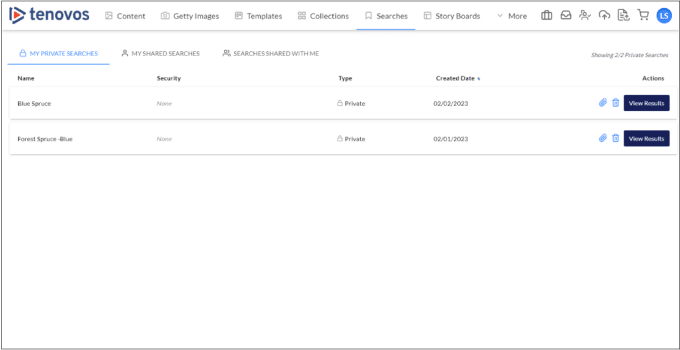
The Searchestab is where you can view and manage your saved searches. It is divided into three pages— Private Searches, My Shared Searches, and Searches Shared with Me. In each page, you'll find details about each search (including the search name, the applied security templates, type and creation date), along with available actions for managing the search such as copy, edit, and delete.
Tenovos Searches page:
View saved searches
The Searchestab lists your Private Searches, My Shared Searches, and Searches Shared With Me.
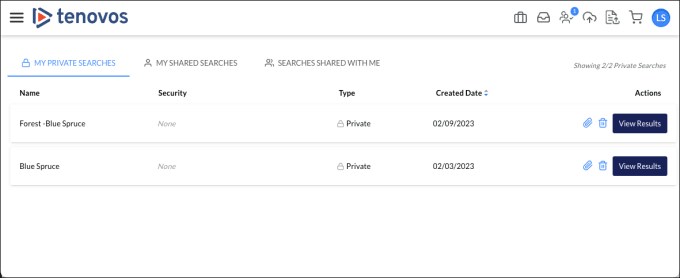
Each tab contains some or all of the following information:
- Name. The name of the saved search.
- Security. The security templates applied to the saved search. Your private searches display None. Shared searches list the applied templates.
- Type. The type of saved search, either Private or Shared.
- Created By. The user who created the search shared with you.
- Created Date. The date the saved search was created.
- Actions. Allows you to manage the saved search and view the results of the search. Different actions are available for each type of saved search.
- In Private Searches, the Actions column includes the options Copy link to clipboard, Delete search, and View Results.
- In Shared Searches, the Actions column includes the options Edit name and security, Share Search, Delete search, and View Results.
- In Searches Shared With Me, the Actions column only includes View Results.
View saved search results
Saved searches allow you to save and access search parameters for quick and easy re-use.
To view saved search results:
-
In the navigation bar, click Searches.
-
Locate the private or shared search that you want to run, then click View Results. The results are displayed in the Content gallery.
Create a saved search
You can create and save private or shared searches.
To create a saved search:
-
In the Search Assets bar in the Contentgallery or the Home page, enter your search criteria. Then press Enter to view the results.
-
If necessary, filter and sort the results. These settings will be included in the saved search.
-
Click the Save Search icon to open the Create Saved Search dialog.
NOTE: The Save Search icon only appears when the search parameters yield results. If a search is not active or if the current search has no results, the Search Assets bar will not display the Save Search icon.

-
Enter a Search Name.
-
Select Private or Share.
- Private saved searches are only visible to you.
- Shared saved searches are visible to multiple users based on security templates. If you selected Share, choose one or more security templates.
-
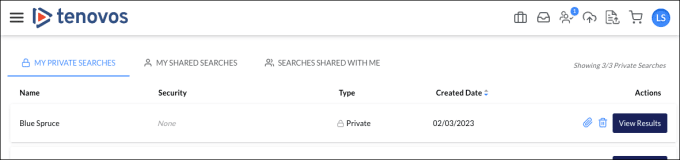
Click Save to create the saved search. The saved search is added to the Searches list either on the My Private Searches tab or the My Shared Searches tab.
Duplicate a saved search
You cannot modify your private saved searches or searches that have been shared with you, but you can duplicate existing searches and then modify the parameters as needed.
NOTE: You can edit the name and security templates of searches you have shared. See Edit your shared searches for details.
To duplicate a saved search:
-
In the navigation bar, click Searches. Then locate the search you want to duplicate and click View Results. The results are displayed in the Content gallery.
-
If necessary, filter and sort the results. These settings will be reflected in the saved search.
-
Click the Save Search icon to open the Create Saved Search window.
NOTE: The Save Search icon only appears when the search parameters yield results. If a search is not active or if the current search has no results, the Search Assets bar will not display the Save Search icon.
-
Enter a Search Name.
-
Select Private or Share.
-
Private saved searches are only visible to you.
-
Shared saved searches are visible to multiple users based on security templates. If you selected Share, choose one or more security templates.
-
-
Click Save to create the saved search. The saved search is added to the Searches list either on the My Private Searches tab or the My Shared Searches tab.
Edit your shared searches
You can modify the name and security templates of the searches you have shared.
You cannot modify your private saved searches or searches that have been shared with you, but you can save them as a new private or shared search and then edit them as necessary. See Duplicate a saved search for more information.
To edit a search you have shared:
-
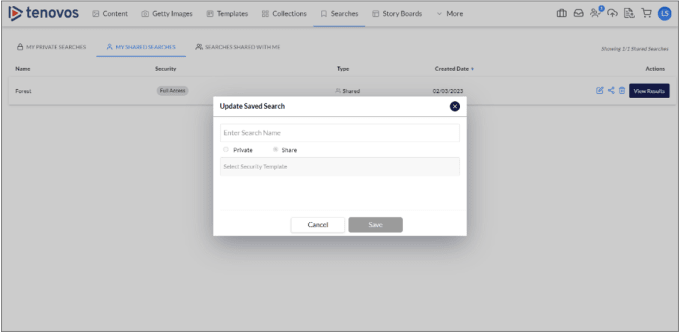
In the navigation bar, click Searches. Then display the My Shared Searches tab.
-
In the Actions column, click Edit name and security. The Update Saved Search window appears.
-
Change the saved search’s name and/or security templates, then click Save.
Delete saved searches
You can delete the private and shared searches that you create. Searches that have been shared with you can only be deleted by their owners.
To delete a saved search:
-
In the navigation bar, click Searches. Then locate the private or shared search that you created.
-
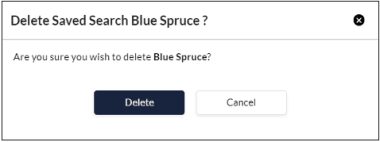
In the Actions column, click Delete search. The Delete Saved Search dialog appears.
-
Click Delete to delete the saved search.
Share saved searches
To share search parameters, you can create a shared saved search as described in Create a saved search. You can also share a link to the private or shared search you have created as described in the following sections.
SHARE A PRIVATE SEARCH
To share a private saved search:
-
In the navigation bar, click Searches. Then display the My Private Searches tab and locate the saved search you want to share.
-
In the Actions column, click Copy link to clipboard. The link is copied to your clipboard.
-
Send the link to the required recipients. Anyone who clicks the link must log into Tenovos before they can view the results of the saved search.
SHARE A SAVED SEARCH
To share a shared saved search:
-
In the navigation bar, click Searches. Then display the My Shared Searches tab and locate the saved search you want to share.
-
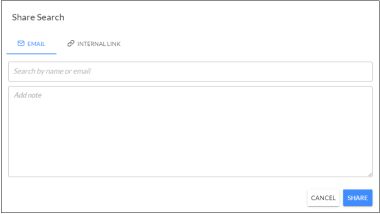
In the Actions column, click Share Search.The Share Search dialog appears.
-
You can share the link via email or internal link.
-
To share via email, display the Email tab and use the Search by name or email field to locate and select the recipient accounts. Enter an optional note in the Add note text box, then click Share.
-
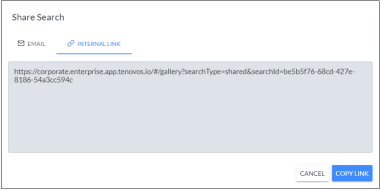
To share via an internal link, display the Internal Link tab and click Copy Link. Paste the link into your preferred distribution channel such as your organization’s messaging app. Users who click the link must log into Tenovos before they can view the results of the saved search.
-