Manage duplicate assets
Introduction
In the Content gallery task bar, Manage Duplicates allows you to easily manage duplicate assets in Tenovos. Selecting this option displays a total count (1) of the Duplicates Found in your system, a thumbnail preview (2) of each asset with duplicates, and the number of duplicates (3) there are of that asset.
Manage Duplicates page
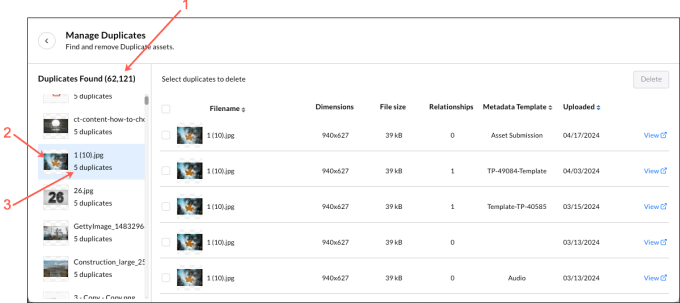
Security templates control the information that you see on the Manage Duplicates page. The Manage Duplicates option is available to all Tenovos users, but users will only see counts of the assets they are allowed to see, as determined by their applied security templates.
Duplicates are identified by their checksum id in System Metadata. The Duplicates Found column displays a preview of the most recently uploaded asset and a count of the duplicate assets. Selecting that asset displays it and all its duplicates in the right pane.
By default, the right pane lists the most recently uploaded asset first (the same one displayed in the Duplicates Found column), followed by its duplicates in descending order, by upload/creation date. (For example, in the preceding screenshot, the highlighted file is one of five duplicates, and all five are listed in the right pane.)
For each duplicate asset, the right pane provides details including its Filename, Dimensions, File size, Relationships (total number of related assets), applied Metadata Template, and the date the duplicate was Uploaded (created).
- You can sort the display by Filename, Metadata Template, and date Uploaded.
- Clicking the duplicate asset's View button opens its Asset Details screen.
- A Delete button allows you to quickly remove one or more duplicate assets.
NOTE: The Duplicates Found count does not include assets in the Recycle Bin.
View duplicate assets from the Content gallery
Security templates control the assets you see on the Manage Duplicates page. The Manage Duplicates option is available to all Tenovos users, but users will only see counts of the assets they are allowed to see, as determined by their applied security templates.
NOTE: The Duplicates Found count does not includes assets in the Recycle Bin.
To view duplicate assets:
-
In the Content gallery task bar, click Manage Duplicates. The Manage Duplicates screen is displayed.
-
In the Duplicates Found column, select an asset to view its duplicates in the right pane.
💡 Tip:
Use your browser's Find tool to locate a specific file in the Duplicates Found column.By default, the right pane lists the most recently uploaded asset first (the same one displayed in the Duplicates Found column), followed by its duplicates in descending order, by upload/creation date. (For example, in the preceding screenshot, the highlighted file is one of five duplicates, and all five are listed in the right pane.)
For each duplicate asset, you can see its Filename, Dimensions, File Size, Relationships (total number of related assets), the name of its applied Metadata Template, and the date the duplicate was Uploaded.
- To sort the asset duplicates, click the Filename, Metadata Template, or Uploaded column headings.
- To view a duplicated asset's Asset Details, click its View button.
- To delete a duplicated asset, select it then click Delete.
View duplicate assets in Asset Details
When you view Asset Details for an asset, its duplicate assets—if there are any—are listed in a Duplicate Files tab at the bottom of the screen.
Delete duplicate assets
To delete duplicate assets:
- In the Content gallery task bar, click Manage Duplicates. The Manage Duplicates screen is displayed.
- In the Duplicates Found column, select an asset to view its duplicates in the right pane.
💡 Tip:
Use your browser's Find tool to locate a specific file in the Duplicates Found column. - Select the check boxes of the duplicate files to delete, then click Delete.